How to send and receive SMS directly from Microsoft 365 Outlook (Online and Desktop App)
Key Takeaways:
|
Email remains a core communication tool, especially for professional and business communication. While it’s a popular communication channel, it’s not always ideal for urgent or time-sensitive messages.
With email, important messages may get buried in crowded inboxes, resulting in delayed responses, missed alerts, and communication gaps. This is where SMS plays an important role in sending urgent and instant messages at scale.
When you’re working on your desktop using Outlook 365, sending messages via SMS may seem cumbersome and drop productivity. The solution? You can send SMS directly from Outlook, both by the desktop app and online.
In this guide, we’ll discuss how to send and receive SMS in Microsoft 365 Outlook and the role TXTImpact plays in this process.
Jump to: |
Can You Send SMS From Microsoft 365 Outlook?
Yes, it is possible to send and receive text messages from Microsoft 365 Outlook (online or desktop) using TXTImpact. While Microsoft 365 Outlook does not include a native feature to send or receive SMS directly from the app, integrating with TXTImpact makes this functionality possible.
For instance, several providers and mobile networks offer email-to-text services that enable businesses to send and receive texts directly from their email platforms; however, major carriers, such as Verizon, AT&T, and T-Mobile, have discontinued this service due to security concerns and performance issues.
This is where providers like TXTImpact come into play.
TXTImpact allows integration with Outlook via an Add-In plugin, email-to-SMS gateway, or an SMTP configuration and COM Plugins (for older versions of Outlook). We’ll learn more about this tool and service in the upcoming sections.
Why Send SMS From Microsoft Outlook 365?
Microsoft 365 Outlook is already a communication backbone for many businesses, enabling them to send calendar invites, reminders, emails, and coordinate internally. Adding SMS functionality to Outlook eliminates the need to switch between platforms, enabling simpler, faster, and more efficient communication.
Here’s why sending SMS from Outlook is beneficial and makes sense for business communications:
- Reach contacts instantly and efficiently: When businesses are already working on Outlook, switching to mobile devices to send SMS can disrupt workflows and productivity. Sending SMS directly from Outlook from a familiar interface eliminates distractions and ensures a seamless and efficient communication workflow.
- Instant visibility: Emails sit within inboxes for hours. SMS, on the other hand, is typically opened within minutes, making it reliable for sending urgent alerts, approvals, reminders, and time-sensitive updates.
- Centralize conversations: With SMS integrated into Outlook, businesses can easily manage both email and text messages from one place, creating a unified communication, improving record-keeping, and streamlining conversation tracking.
- Improve response rates: SMS and text messaging encourage faster replies than email. Whether you’re collecting approvals, confirming appointments, or resolving customer issues, SMS helps reduce delays and speed up decision-making.
- Professional documentation and audit logs: SMS sent from Outlook creates a record in your existing system, ensuring compliance and providing an audit trail for compliance-sensitive industries such as finance, healthcare, and legal services.
- Enable two-way engagement: Two-way communication lets customers reply to your alerts and notifications, which appear in your Outlook inbox. This makes Outlook into a conversational messaging platform rather than a simple broadcast channel.
Increase productivity: Email-to-text services simplify workflows, eliminating the need to introduce another dashboard or messaging app. Integrating SMS into Outlook enables businesses to communicate through a system they already understand, saving time and reducing complexity.

Classic Desktop Outlook vs New Outlook/Outlook Web/Microsoft 365: What’s The Difference?
Microsoft offers two primary Outlook experiences: the Classic Desktop Outlook app and the New Outlook. The New Outlook is available as both a desktop app and a browser-based experience. While both provide email management capabilities, they differ significantly in terms of flexibility, functionality, and integration options.
Here’s how the two Outlook experiences differ from one another:
Factors | Classic Desktop App | New Outlook App/Outlook Web |
Installation | Installed locally on Windows or Mac | The new app can be installed from the Microsoft Store and is also available as a browser-based version. |
Platform accessibility | Works with limited connectivity and offers more control over advanced settings and add-ons | Accessible from anywhere with internet access and connection |
Features and add-ons | Supports legacy COM add-ins | Supports web-based add-ins |
Integrations | Advanced rules and mailbox management, more detailed administrative controls | Seamless integration with Microsoft Teams, OneDrive, and other 365 apps |
User interface and experience | Traditional ribbon-style interface, highly customizable views, and familiar to long-time Microsoft users | Modern, simplified UI, cleaner layout, and faster navigation, and designed to align with other Microsoft 365 apps |
Updates and maintenance | Requires manual updates as part of Microsoft Office updates | Microsoft automatically updates it; no maintenance is required from users |
TXTImpact offers solutions for both the Outlook app and the Outlook web version.
If you’re using the traditional desktop Outlook application (Older versions such as Microsoft Outlook 2010/ 2013/ 2016/2019/ Office 365 (Classic desktop), use the Desktop Outlook plugin, which requires installing the COM plugin on your computer.
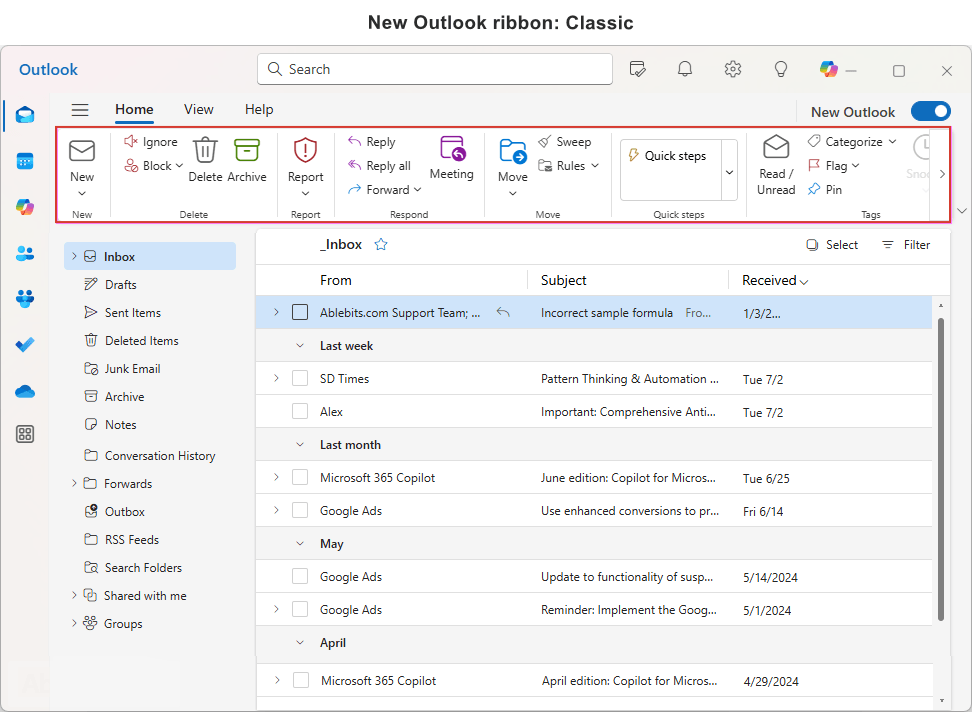
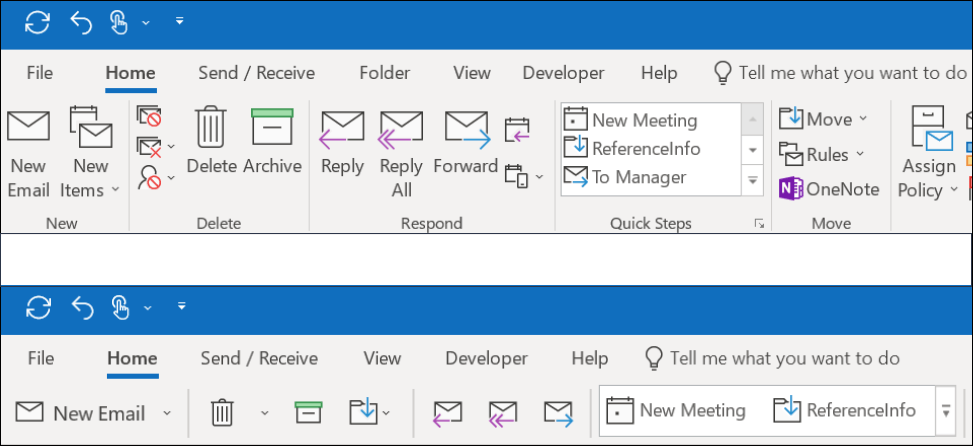
The desktop Outlook app is useful for companies using local Outlook desktop applications and environments where IT manages Outlook plugins.
On the other hand, if your business is using the new Outlook in Microsoft 365, you must use the TXTImpact Outlook add-in, which is installed via a manifest file and works across browsers, desktops, and Macs.
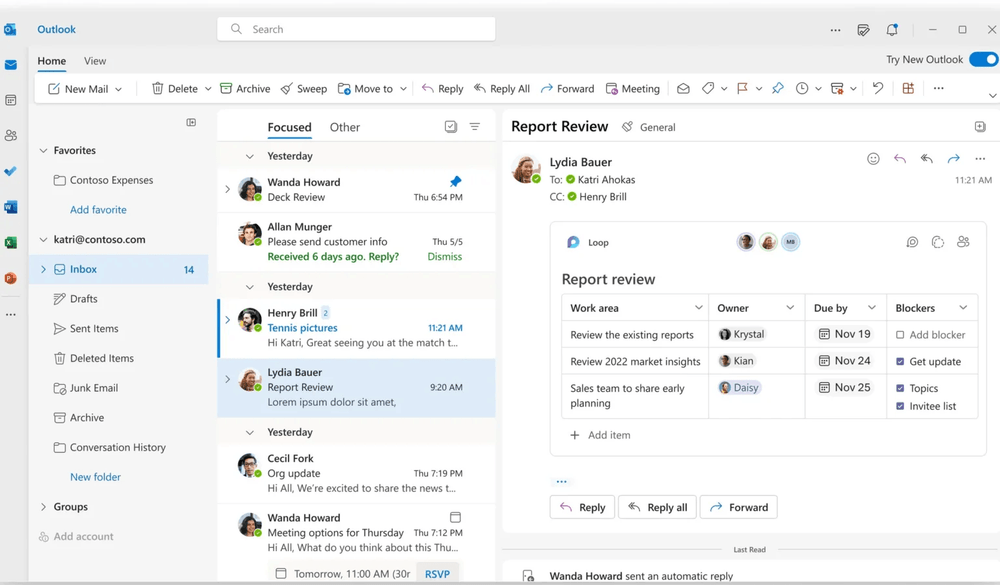
If your Outlook looks like | Install | Supported Environments |
Classic desktop Outlook with ribbon menus | TXTImpact Outlook Plugin (COM Add-in) | Supported on Microsoft Outlook 2010, 2013, 2016, 2019, and Classic Desktop |
New modern Outlook or Outlook in browser | TXTImpact Outlook Add-In (Microsoft 365) | Supported on New Outlook for Windows, Mac, Outlook Web, and Outlook in browsers |
3 Ways to Send and Receive SMS From Microsoft 365 Outlook?
Here are three ways to easily send and receive SMS from Microsoft Outlook, depending on which version you are using.
Method 1: TXTImpact Outlook SMS Add-ins and Plugins (Microsoft 365 Desktop and Online Version)
TXTImpact provides an Outlook add-in that lets you send and receive SMS directly from your Microsoft Outlook 365 application or your online browser.
To use this add-in on Outlook, you’ll need to sign up and log in to your TXTImpact Omnihub accounts first.
Then, go to Integrations > Click Outlook > Click Connect > Accept Microsoft Permissions, and you are done.
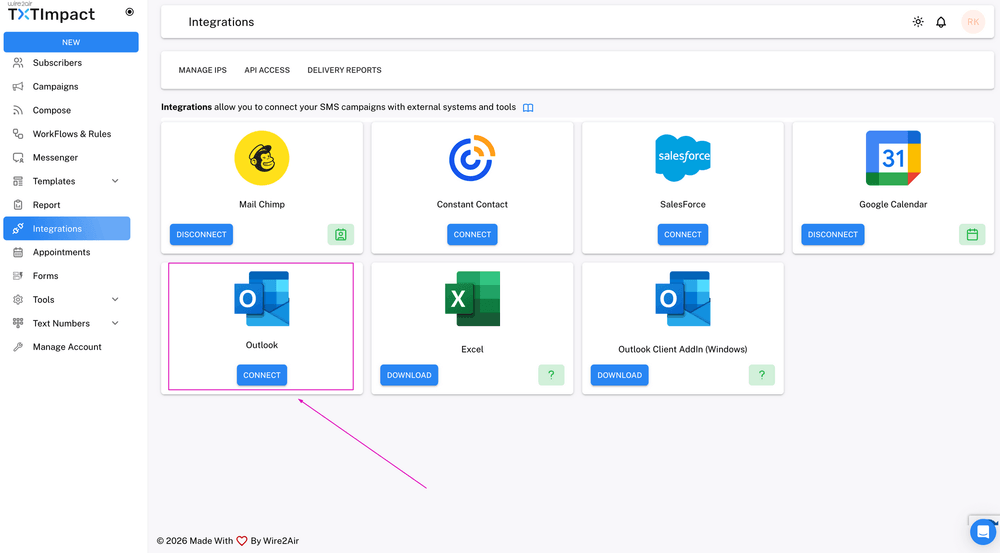
Here’s how you can install and set up the TXTImpact Outlook add-in to send and receive texts directly from your email inbox:
- Download the Manifest XML file and save it locally on your desktop.
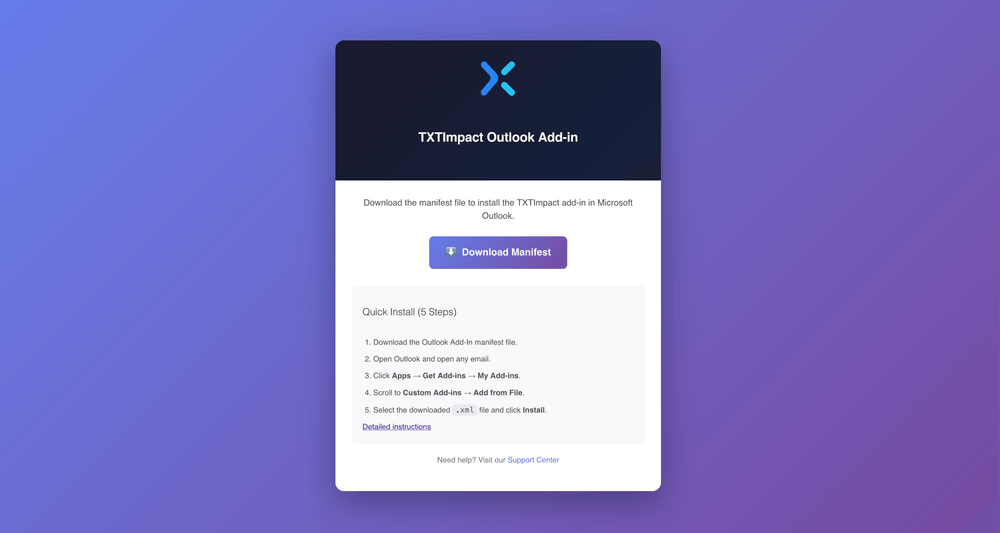
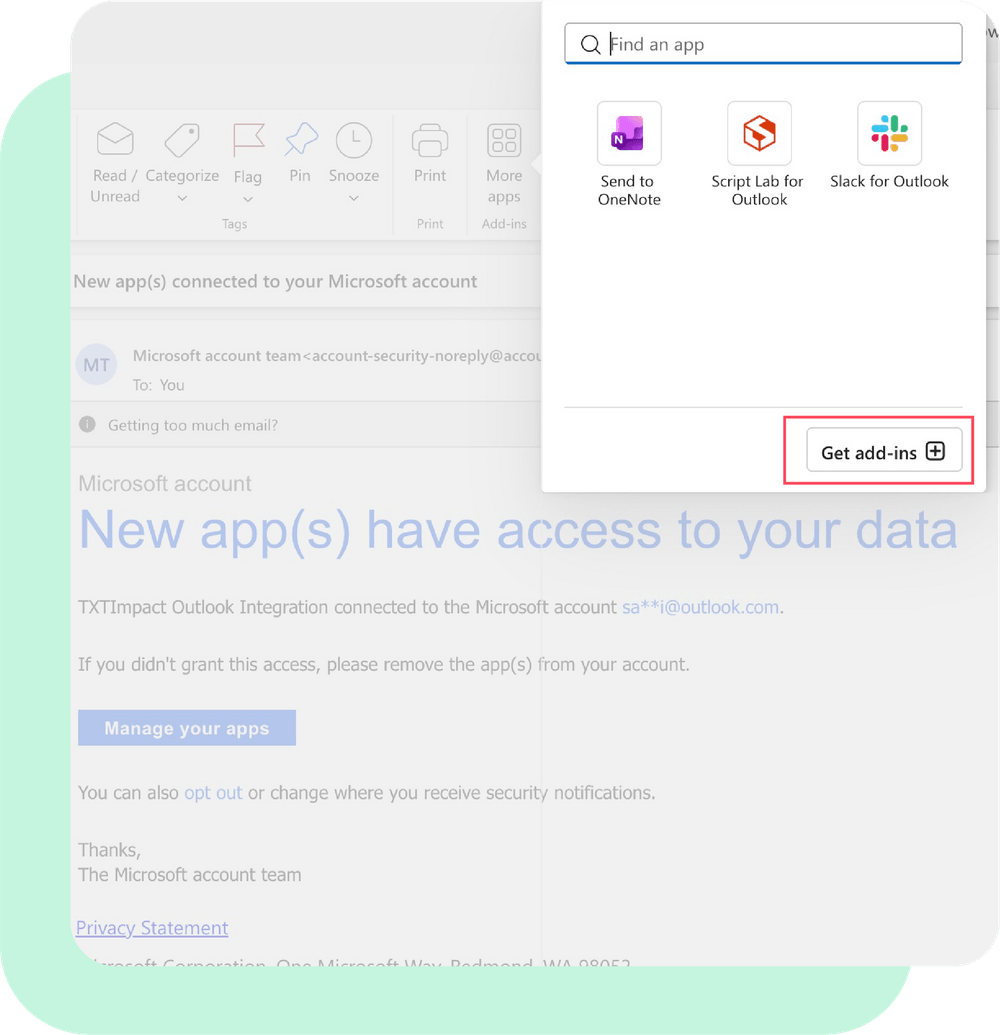
- Open the email in Outlook, Apps -> Get Add-ins.
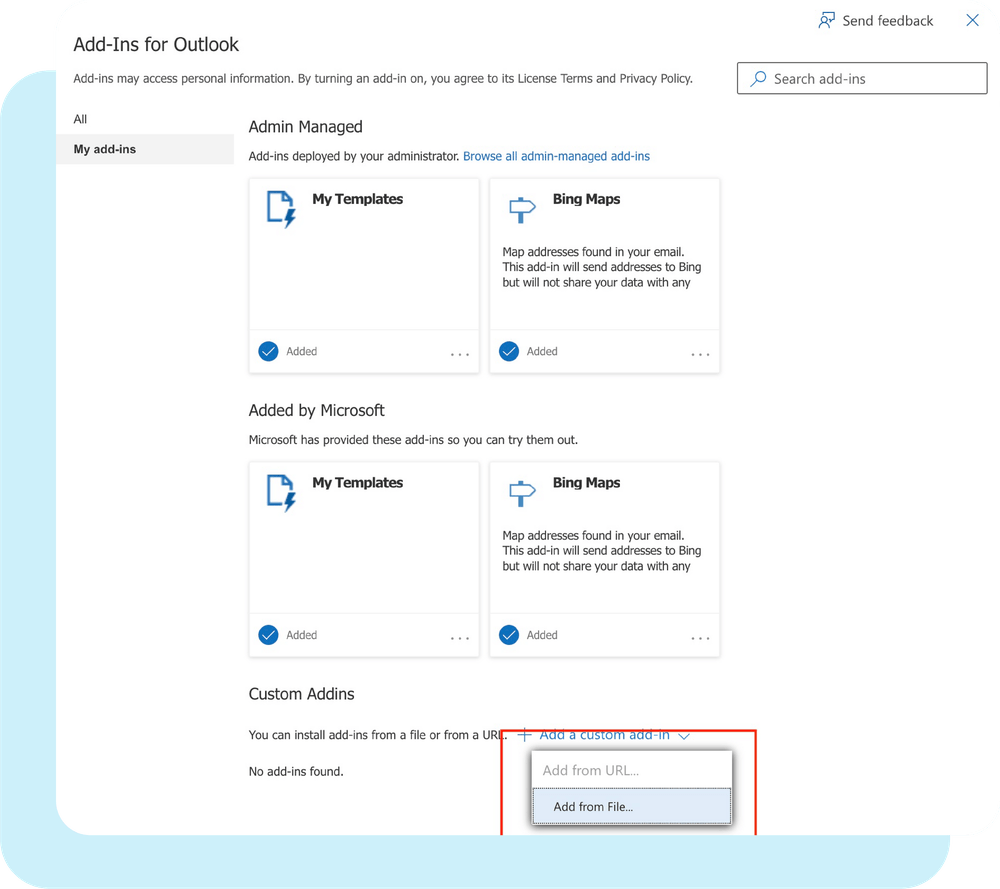
- Install the add-in by selecting My Add-ins -> Custom Add-ins -> Add from File -> select the downloaded XML -> Install.
- Open any email -> click the TXTImpact/Wire2Air icon -> Messenger opens on the right.
- Click New Message -> enter mobile number -> type the required message -> Send.
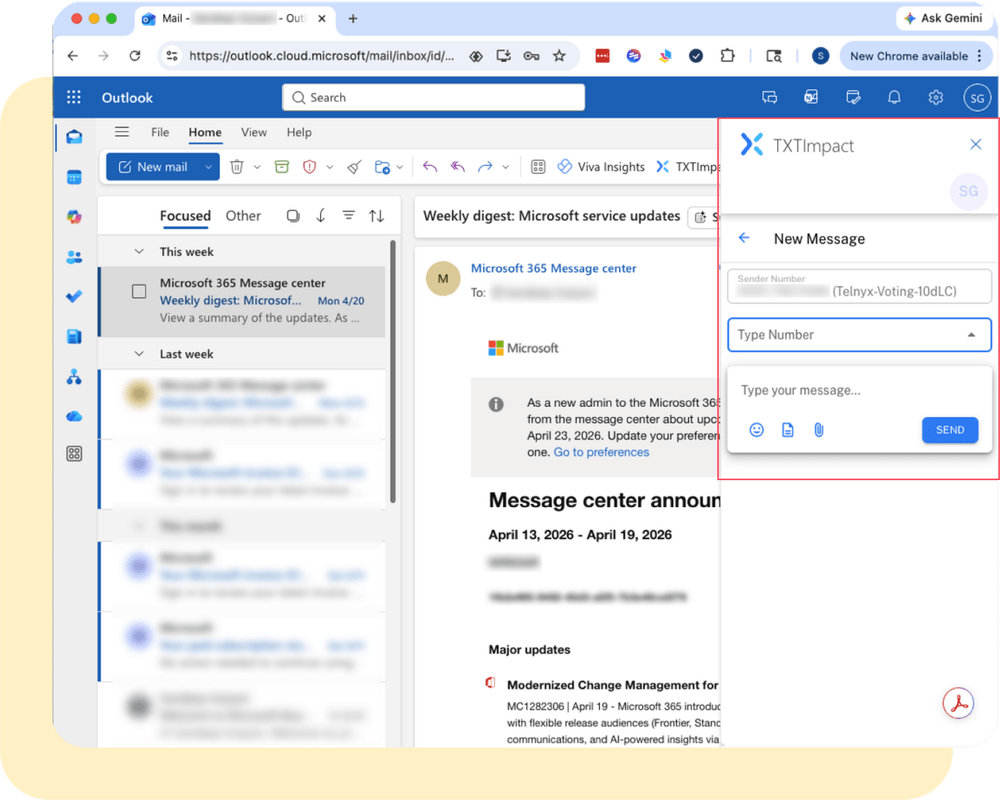
If you are an administrator or want to learn more about installing the add-in, check out our detailed guide.
See it in Action: How to Integrate Outlook with TXTImpact Messenger Add-In
Method 2: COM Plugins if you’re using MS Outlook 2013
If you’re using the traditional desktop application, you need to install a COM plugin on your computer to send and receive SMS using Outlook.
Follow these steps for MS Outlook 2010 with TXTImpact:
- Click on New Items
- Select Text Message (SMS) option
- Enter the recipient’s mobile numbers
- Type your message
- Press ‘Send’
Note: Microsoft Outlook 2010 is now obsolete and no longer supported, as it reached end of support in October 2020. This means it no longer receives security updates or bug fixes, and some built-in messaging and integration features may not work properly with modern systems. Upgrading to a newer version is strongly recommended.
Follow these steps if you’re using MS Outlook 2013/2016
- Download TXTImpact’s Outlook 2013 add-in/COM plugin via TXTImpact Omnihub dashboard after login.
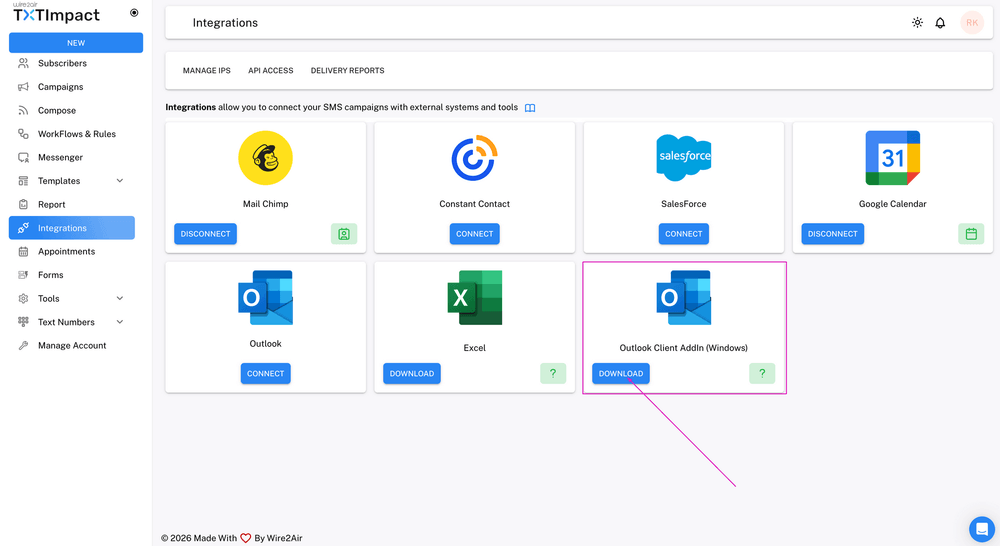
- Use the add-in to send and receive texts and images
The supported environments for this plugin are Microsoft Outlook 2010, 2013, 2016, 2019, and Classic Desktop. However, it’s important to note that this plugin only works with the Classic Outlook desktop application, not with New Outlook Web or Outlook for Windows.
Method 3: TXTImpact’s Email-to-SMS Service
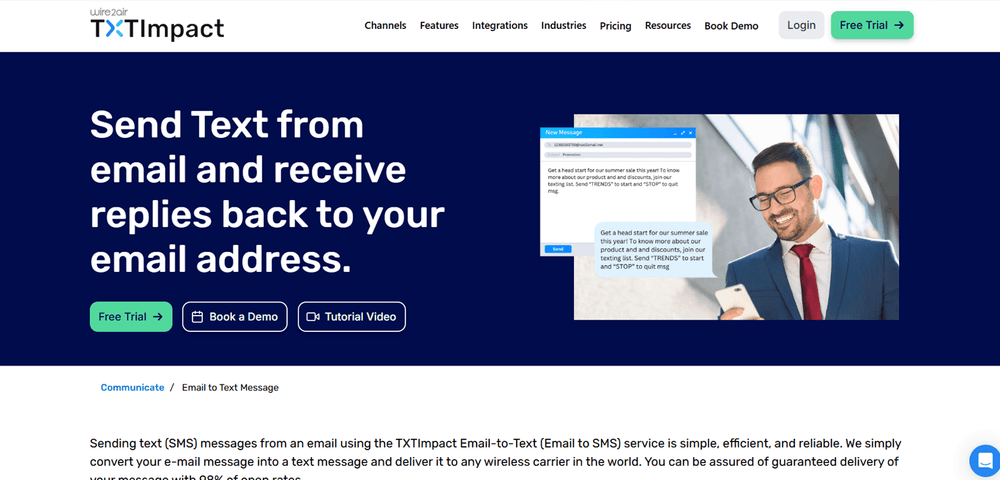
One of the simplest and most trusted ways to send and receive SMS from Microsoft 365 Outlook is through TXTImpact’s email to sms gateway or email-to-text service.
The Email-to-SMS service is a simple gateway that converts an email into a text message and forwards it to a phone number without requiring knowledge of the recipient’s carrier.
Once you’re registered with TXTImpact, your message from Outlook 365 will be converted into SMS and forwarded to the respective mobile numbers. Replies will be automatically returned to your Outlook email inbox.
Thus, without any technical or development skills, businesses can easily send texts to their customers via email from their desks with little hassle.
Here are the key features of TXTImpact’s email-to-text service:
- It enables two-way messaging, allowing businesses to receive and respond to SMS directly from their Outlook inbox.
- Businesses can add or remove custom signatures as needed to establish a strong brand identity or keep the text clean.
- It allows businesses to attach PDFs or images and send attachments as MMS to ensure rich media delivery.
- It supports keyword-based routing, automatically forwarding messages to the Outlook inbox based on keywords.
- It provides message delivery confirmation and automatically notifies customers when a message delivery fails.
- Businesses can leverage auto-reply to set automated responses for incoming email messages.
- It supports multi-channel compatibility, including email-to-MMS, email-to-RCS, and email-to-WhatsApp, allowing businesses to reach customers across multiple platforms seamlessly.
Other key features of email-to-text include email domain whitelisting, custom sender ID, message archiving, and character limit alert.
Still wondering how to enable text messaging in Outlook? Our support team is here to help. Reach out anytime, and we’ll help you set it up for free. |
Common Issues with Outlook SMS and Troubleshooting Them
Businesses can encounter several predictable/unpredictable challenges when trying to send SMS from Outlook. Here are the common issues businesses can encounter and how to troubleshoot them:
Challenge 1: SMS not delivered
There could be several reasons for undelivered messages, such as carrier filtering or blocking, incorrect phone number format, an invalid or inactive mobile number, insufficient SMS credits, or sender ID restrictions.
How to fix:
Use an approved sender ID or ensure the number is SMS-enabled. Also, you can switch to a professional email-to-SMS service with verified business numbers and delivery confirmation.
Challenge 2: Email not converted to SMS
The email you send may sometimes not reach the recipient as SMS due to incorrect gateway domain format, email address not whitelisted, spam filtering on Microsoft 365, or email sent from an unauthorized Outlook account.
How to fix:
Verify domain authentication techniques, confirm your email address is approved in TXTImpact, and check your sent folder and mail logs.
Challenge 3: You don’t know the recipient’s carrier
This was one of the biggest challenges of carrier gateways. Businesses had to know whether the contacts they are sending SMS to are using AT&T, T-Mobile, or Verizon to send the correct gateway.
How to fix:
TXTImpact’s email-to-text service handles and addresses this issue by handling carrier routing. You must enter the mobile number, and TXTImpact handles the rest. Making sending and receiving SMS from Outlook a breeze.
Challenge 4: Character limits and message splitting
Standard texts have character limitations of 160 characters for GSM-encoded messages and 70 characters for Unicode/emoji or special symbols messages. If messages exceed these limits, SMS often splits or truncates messages into multiple segments.
How to fix:
TXTImpact’s email-to-text service automatically converts SMS with longer character limits into MMS messages. Besides, it provides a character limit alert and automatically trims email content if the SMS exceeds the character limit.
Challenge 5: Carrier filtering or message blocking
There is a chance that certain mobile carriers clock or filter messages that appear spam-like or promotional. Messages that include excessive capitalization, URLs from unverified domains, missing opt-out instructions, or repeated bulk messaging without opt-in.
How to fix:
The fix is to ensure recipients have provided consent to receive messages, avoid spam-like wordings and formatting, include clear opt-out instructions, and use approved, registered links.
Challenge 6: User replies not appearing in Outlook
Possible reasons for user replies not appearing in the email inbox include incorrect email routing configuration, two-way messaging not activated, carrier reply restrictions, and a virtual number not assigned properly.
How to fix:
Ensure two-way SMS is enabled in your TXTImpact account, check the spam/junk folder in Outlook, ensure the correct reply-to-email address is added/enabled, and verify the assigned virtual number supports inbound SMS.
Challenge 7: No record of what data was sent
Certain plugins and phone texting don’t create reliable records, which can create audit issues for compliance-sensitive industries, such as healthcare, finance, and legal.
How to fix:
TXTImpact’s email-to-SMS ensures that every message and its replies are saved in your email system, with timestamps and sender information, streamlining audits and ensuring compliance.
Challenge 8: Delivery delays
While SMS is typically instant, delays can occur due to international routing, carrier network congestion, high-volume bulk sends, or delays in DLT or regulatory approvals.
How to fix:
Avoid sending high-volume messages during peak hours, check delivery timestamps in TXTImpact reports, and ensure regulatory templates are pre-approved if required.
Best Practices When Sending SMS From Outlook
Here are the best practices businesses must follow when sending SMS from Outlook:
- Always use proper number formatting to avoid delivery failures.
- Keep messages clear and concise, and avoid unnecessary and irrelevant emojis and special characters.
- Include clear opt-out instructions, especially for promotional and marketing messages.
- Obtain proper user consent and maintain consent records to ensure compliance with TCPA regulations.
- Avoid spam-like, forceful, and excessive language formatting and instead use professional, clean language
- Test messages before sending bulk SMS before sending to large distribution lists to confirm formatting and delivery
- Ensure secure access, and only authorized Microsoft 365 email addresses are approved to send SMS through the TXTImpact gateway.
Real-World Business Use Cases of Outlook SMS by Industry
Sending SMS directly from Microsoft Outlook 365 solves several real-world communication problems for businesses across industries. Here’s how different sectors and industries can use and benefit from the Outlook-to-SMS feature effectively:
1. Healthcare industry
Healthcare providers and hospitals rely heavily on accurate, timely communication. The use cases of sending SMS from Outlook for healthcare providers include
- Appointment reminders and confirmations
- Prescription pickup alerts or sending bills and prescriptions on mobile
- Vaccination or follow-up notifications
- Emergency schedule changes
2. Logistics and transportation
Logistics also require timely communication, with Outlook helping in the following ways:
- Pickup confirmations
- Delivery status updates
- Driver coordination
- Route changes or delay notifications
3. Education
Schools, colleges, and training institutes can use Outlook-to-SMS for:
- Emergency announcements
- Parent notifications
- Fee payment reminders
- Event updates and exam schedules
4. Retail e-commerce and service businesses
Retailers and service-based companies can benefit from sending SMS from Outlook with:
- Service reminders
- Promotional alerts
- Appointment confirmations
- Feedback requests
5. HR and recruitment
The HR and recruitment industry can send direct SMS to the candidates and employees with Outlook-to-SMS with:
- Onboarding instructions
- Interview scheduling and confirmations
- Payroll updates
- Monthly salary updates
- Policy announcements
6. IT and SaaS companies
Tech and IT teams often need to send urgent alerts and notifications. Outlook-to-SMS works well for:
- Security alerts
- System downtime notifications
- OTP or verification messages
- Incident setups
💡 Also Read: How to add SMS notifications to SaaS and legacy systems without rewriting code? |
Why Choose TXTImpact’s Email-to-SMS Service?
TXTImpact’s email-to-text service stands out as a reliable, scalable, and enterprise-ready business solution. Here’s why you should choose TXTimpact’s email-to-SMS service:
- With TXTImpact, you can send SMS to any email client, directly from Outlook, Gmail, or any other email platform, no additional API integration or software required. TXTImpact simply converts your email into a text message and delivers it instantly.
- TXTImpact works best after carrier gateway shutdowns. Several carriers, such as T-Mobile, Verizon, and AT&T, shut down their free email-to-SMS gateways, making legacy methods unreliable and less secure. TXTImpact provides a compliant, seamless alternative that ensures consistent SMS delivery without relying on outdated systems.
- TXTImpact’s email-to-SMS requires no development skills, unlike other API-based solutions. It works as long as your system can send emails. This makes TXTImpact’s email-to-SMS ideal for non-technical teams and quick deployment.
- TXTImpact provides a centralized communication hub by combining email (Outlook) and SMS. This simplifies conversation management and improves visibility across teams.
Besides, TXTImpact also ensures high engagement, reliability, global reach, two-way messaging, and security and compliance, making it an ideal solution for businesses of all sizes.

Conclusion
Sending SMS from Outlook is no longer a limitation; it’s a powerful solution that drives efficient business communication. With carrier gateways shut down and plugins requiring installation, an email-to-text solution provides a reliable, secure way to send texts directly from Outlook.
Without installing additional plugins or software, TXTImpact’s email-to-text service ensures higher visibility, faster communication, improved response rates, and streamlined workflows. It offers excellent features, including two-way messaging, message delivery confirmation, multi-channel compatibility, custom sender ID, global coverage, and more.
So, whether you’re sending critical updates, alerts, or reminders, email-to-text service helps teams stay efficient and responsive while ensuring compliance, security, and simplicity.
Start a free trial today to explore our email-to-SMS service or contact us to learn more.
FAQs
♦ Can I use my existing phone number to send SMS from Outlook?
Yes, TXTImpact allows you to use or choose from a dedicated, virtual business number, a 10DLC toll-free number, or a landline number. Or, you can also port your existing business number to maintain brand consistency while enabling two-way SMS directly from Outlook.
♦ Can I schedule SMS texts directly from Outlook?
Yes, TXTImpact allows businesses to either send messages directly or schedule them through configured rules or dashboard controls. This is ideal for campaign planning, sending reminders, or timed alerts.
♦ Can I personalize SMS messages when sending to multiple recipients?
TXTImpact supports personalization through dynamic fields when integrated properly, allowing you to personalize names, appointment dates, and other custom details in bulk messages.
♦ Does Outlook-to-SMS support international messaging?
Yes, definitely. TXTImpact provides global SMS coverage, enabling businesses to send messages internationally without knowing the recipient’s carrier network.
♦ How secure is sending SMS through Outlook with TXTImpact?
TXTImpact ensures the utmost security with authenticated routing, email whitelisting, and secure infrastructure to prevent unauthorized use. Additionally, delivery reports and message logs also help maintain accountability and audit trails.
♦ Can I attach files when sending SMS through Outlook?
Yes, with TXTImpact, you can send attachments, such as images and PDFs, as MMS messages. This means when you add files to SMS, the message will automatically be converted to MMS and sent to the users.
About the Author:
 | Tejal Sushir (Content Writer) Tejal Sushir is a content writer with 4+ years of experience writing fresh and insightful content for B2B SaaS companies. She has delivered top-performing and top-ranking blogs in the SMS marketing, Digital Marketing, web hosting, AI & ML, cybersecurity, WordPress, HR Tech, and technical SEO domains. Her meticulous research when writing content ensures industry expertise and keeps up with emerging trends. |