How to Set Up an Affordable Text-to-Donate System Using Stripe and TXTImpact
When fundraising opportunities arise, donors should be able to contribute without navigating a complicated process. Whether you're raising money at an event, responding to an emergency, or running a year-end campaign, a simple mobile giving experience can make donating easier.
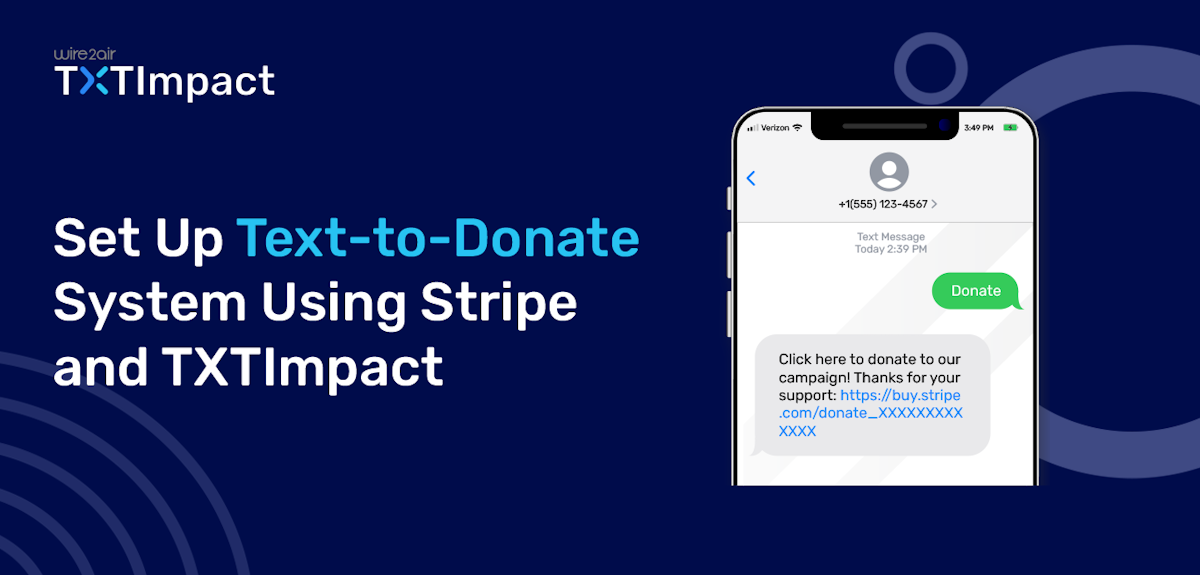
Text-to-donate simplifies the process by letting supporters text a keyword, receive a donation link, and complete their contribution through a mobile-friendly payment page.
Instead of paying for a bundled fundraising platform, nonprofits can combine Stripe for payment processing and TXTImpact for text messaging and automation. This approach lets you share donation links through automated keyword responses and SMS fundraising campaigns.
This guide explains how to set up your text-to-donate system, follow SMS compliance best practices, and understand the associated costs.
What Is Text-to-Donate for Nonprofits?
Text-to-donate is a fundraising method that lets supporters initiate a donation through a text message and complete the gift through a donation page.
Text-to-Give vs. Text-to-Donate: What's the Difference?
The terms text-to-give and text-to-donate are often used interchangeably. However, some providers use them to describe different donation workflows.
Text-to-donate | Traditional carrier-billed text-to-give |
A text initiates the donation process. | A donation may be initiated through a carrier-supported text-based giving process. |
The supporter typically receives a link to a donation page. | The donation may be charged through the mobile carrier, depending on the service. |
Payment is completed through the configured payment provider. | Donation limits, fees, and payout arrangements depend on the provider and carrier. |
This guide focuses on a link-based text-to-donate workflow using Stripe and TXTImpact. It does not require a carrier-billed donation service.
How Does Text-to-Donate Work?
A text-to-donate system connects a nonprofit's messaging campaign with its online donation process.
A typical text-to-donate campaign works like this:
- A nonprofit promotes a keyword and texting number.
- A supporter texts the keyword to that number.
- An automated response provides a donation link.
- The supporter opens the link and completes the payment.
- The nonprofit reviews available donation and messaging data and follows up appropriately.
For example, a nonprofit running a winter shelter campaign might promote this call to action:
Text “SHELTER” to [Your TXTImpact Number] to support local families.
When a supporter texts SHELTER, TXTImpact can send an automated reply containing a link to the nonprofit's Stripe payment page. The supporter can then choose a donation amount and complete the payment using the options configured for that page.
In this setup, TXTImpact manages the messaging workflow, while Stripe provides the hosted payment page and processes the payment. These are separate parts of the donor journey, so your organization should verify that both are configured correctly.
This workflow gives supporters a simple way to access a donation page from their phones. It also lets nonprofits manage campaign messaging separately from payment processing.
You might be wondering, why Stripe? Stripe offers discounted payment processing fees for eligible nonprofit organizations that primarily accept donations. Let’s see how your nonprofit can qualify for this discount and set it up.
How to Set Up Text Donations Using Stripe and TXTImpact
You can build a link-based text-to-donate workflow by creating a Stripe payment link and connecting it to an automated TXTImpact response. Follow these steps to prepare your campaign.
Step 1: Secure Your Stripe Nonprofit Discount
Before creating your donation forms, make sure your organization is pocketing as much of each donation as possible by securing Stripe's discounted non-profit processing fees. But before proceeding kindly, Check Eligibility for Stripe Fee Discount for Nonprofit Organizations.
- Create your account: Sign up for a standard business account at Stripe.com.
- Apply for the nonprofit rate: Once your account is active, submit your official 501(c)(3) determination letter (or international equivalent) to Stripe’s support team.
- Enjoy reduced rates: Once approved, Stripe lowers your transaction processing fees significantly (typically 2.2% + $0.30 for standard card swipes), saving your nonprofit valuable overhead on every single gift.
Step 2: Generate Your Flexible Stripe Payment Link
Stripe Payment Links allow you to create a secure checkout page that works beautifully on any mobile browser.
- Log into your Stripe Dashboard.
- Click the + (Create) icon in the top right corner or navigate to Payments > Payment Links and click New.
- Under the product selection dropdown, customers choose what to pay. This allows your donors to type in any custom dollar amount they feel compelled to give.
- Customize your presentation:
- Title & Description: Add your campaign name and a concise, emotional hook (e.g., "Support Our 2026 Winter Shelter Drive").
- Image: Upload your nonprofit's official logo or an image from your campaign.
- Expand Advanced Options:
- Change the Call-to-Action button text from "Pay" to Donate.
- Turn on Apple Pay and Google Pay. (Crucial Step: This allows text recipients to complete their donation via face or fingerprint scan in 3 seconds, removing the friction of typing card numbers on a mobile screen).
- Click Create Link in the top right corner and copy your unique URL (e.g., https://stripe.com).
For current setup instructions, see Stripe's Payment Links documentation.
Step 3: Set Up Automated Keyword Responses in TXTImpact
After creating your Stripe payment link, configure TXTImpact to send it automatically when a supporter texts your campaign keyword.
TXTImpact's SMS Workflows support automated messaging triggered by keywords and other configured actions. You can use this functionality to connect a campaign keyword with a donation link.
Follow these steps:
- Sign in to your TXTImpact account.
- Open the available SMS workflow or autoresponder tools.
- Select the messaging number you intend to use for the campaign.
- Create a workflow with an inbound keyword trigger.
- Choose a short, relevant keyword, such as GIVE, DONATE, or SHELTER.
- Configure the automated response and insert your Stripe payment link.
- Review the message, activate the workflow, and test it from a separate mobile phone.
The exact dashboard labels may vary depending on your TXTImpact account and interface.
Sample automated donation reply
[Nonprofit Name]: Thank you for supporting our cause! Donate securely here: buy.stripe.com/XXXX
Replace the example URL with the actual Stripe payment link before activating the workflow.
Keep the message concise, identify your organization, and make the donation link easy to recognize and open. Test the keyword and link before promoting them publicly.
For recurring giving, create and test a separate workflow or response if you want to direct supporters to a recurring donation page.
Step 4: Launch Mass Texting Campaigns for Fundraising
An automated keyword response helps donors who discover your campaign through a flyer, event screen, or other promotion. Mass texting lets your nonprofit send fundraising messages to an existing audience that has provided the appropriate permission or consent to receive them.
You can use TXTImpact’s built in opt-in tools to collect consent and build your compliant list. Once done you can organize and send campaigns for fundraising events, matching-gift opportunities, emergency appeals, and year-end giving.
Navigate to Contacts in TXTImpact and upload your donor mobile registry database.
Go to Campaigns > Mass Texting / Broadcast.
Select the contact list segment you wish to target (e.g., "Active Donors" or "2026 Event Attendees").
Draft your message. Because mobile attention spans are short, keep your copy under 160 characters to ensure it arrives as a single, clean text message.
Sample End-of-Year Mass Text Template:
"[Nonprofit Name]: Our midnight deadline is approaching! Help us reach our $10k goal to fund kids' scholarships. Donate securely here: [Insert Your Stripe Payment Link]"
Use TXTImpact’s built-in Link Shortener and link tracking tool to trace exactly who clicks on your broadcast link.
Schedule your blast for peak engagement times (typically mid-morning or early evening) or click Send Now.
Sample end-of-year fundraising mass text
[Nonprofit Name]: Help fund student scholarships before year-end. Donate: buy.stripe.com/XXXX
📝 Note: Keep SMS length in mind. A message of up to 160 characters using standard GSM characters generally fits into one SMS segment and consumes 1 text credit. Longer messages may be split into multiple SMS segments, while messages containing certain Unicode characters have a lower per-segment limit. Sending multiple SMS segments can increase messaging costs. |
TXTImpact helps manage these costs by automatically converting messages longer than 160 characters into MMS. With TXTImpact, a standard SMS of up to 160 characters costs 1 text credit, while an MMS containing longer text costs just 2 text credits, potentially reducing costs compared with sending the same content across multiple SMS segments.
Use concise copy, but do not remove essential campaign details or required disclosures just to meet a character target.
❗Important: Having a donor's phone number does not automatically mean that person has consented to receive fundraising texts. Follow the compliance checklist below before uploading or messaging your contacts. |
Step 5: Test the Complete Donation Experience Before Launch
Before promoting the campaign, test the full journey from the initial text to the completed donation.
Use this checklist:
- The keyword is recognized correctly.
- TXTImpact sends the intended automated response.
- The Stripe link opens the correct campaign page.
- The donation page works on mobile devices.
- Available payment methods function as expected.
- The payment and confirmation process work correctly.
- Link tracking and available reports capture the expected activity.
- Consent, help, and opt-out handling are configured appropriately.
- The campaign is registered and approved where required.
- Messages are scheduled within the applicable sending hours.
Fix any issues before sharing the keyword and number publicly. A smooth, tested experience helps donors complete the intended action without unnecessary confusion.
Text to donate Message templates
Keep messages under 160 characters where possible. Standard text with plain characters fits 160 in one segment. Longer messages split into more segments (about 153 characters each), and a single emoji or special character can switch the message to a format that holds only 70 characters per segment. Character counts below are approximate and assume a 12-character organization name and a 22-character short link.
Auto-reply (about 125 characters)
Thanks for texting [Org]! Give securely by card, Apple Pay or Google Pay: [link] Reply STOP to opt out.
Event auto-reply
[Org] Gala: thank you! Your gift tonight funds [specific impact]. Give here: [link] Reply STOP to opt out.
Emergency or urgent appeal
[Org]: [Event] has left families without shelter. Help now: [link] Reply STOP to opt out.
Year-end appeal (opted-in donors only)
[Org]: Midnight deadline! Help us reach $10K for scholarships. Give: [link] Reply STOP to opt out.
Church or tithe
[Church]: Thank you for your generosity. Give your tithe or offering here: [link] Reply STOP to opt out.
Thank-you (send 1–3 days after the gift)
Thank you for your gift to [Org], [First name]! It helped [specific impact]. Would you consider giving monthly? [link]
Unfinished-gift nudge (send 24–48 hours after the keyword text, only to people who texted in)
Hi, it’s [Org]. Still want to give? Your link is still active: [link] Reply STOP to opt out.
Keyword rules:
- Short and easy to spell.
- One keyword per campaign or amount makes tracking easy (GIVE25, WINTER, SHELTER).
- Consider Spanish or other language keywords if you serve those communities (DONAR, for example).
- Avoid words that are easily confused or commonly mistyped.
SMS Compliance Checklist for Nonprofit Text to donate Fundraising
A nonprofit's charitable mission does not automatically exempt its text messaging campaigns from applicable laws or carrier requirements. Before launching a text-to-donate campaign, establish a process for obtaining consent, handling opt-outs, registering messaging numbers where required, and respecting recipient preferences.
The compliance checklist below summarizes practical steps for US messaging campaigns. It is general information, not legal advice; requirements can vary by message type, technology, recipient location, and applicable law.
1. Obtain Consent Before Sending Fundraising Texts
Do not assume an existing donor list is automatically eligible for mass texting. CTIA guidelines call for opt-in consent before messaging consumers, and TCPA requirements depend on the circumstances.
Maintain records of when and how each contact opted in, the organization and message types covered, the disclosures shown, and any subsequent opt-outs. A donation, event registration, or shared phone number does not automatically authorize fundraising texts. Avoid purchased or shared lists without valid consent records.
Example opt-in language:
I agree to receive fundraising text messages from [Nonprofit Name]. Message frequency may vary. Message and data rates may apply. Reply STOP to opt out or HELP for help. Consent is not a condition of donating.
Use clear disclosures, obtain the required consent, and have qualified counsel review your opt-in process before launching.
2. Support STOP and Other Opt-Out Requests
Recipients must have a clear way to stop receiving messages, and opt-out requests should be honored promptly.
Configure and test standard opt-out keywords such as:
- STOP
- END
- CANCEL
- UNSUBSCRIBE
- QUIT
Exact keyword handling depends on the messaging platform and carrier requirements. Do not rely solely on one exact spelling: make sure your process can handle valid opt-out requests and maintain suppression records.
After a recipient opts out, stop sending covered messages unless the person subsequently provides valid consent to opt in again. A final confirmation may be sent where appropriate; it should not include additional fundraising promotion.
Maintain a suppression list so that opted-out contacts are excluded from future campaign uploads and sends.
3. Configure HELP Responses
A HELP response gives recipients a way to ask for information about a messaging program.
Configure the platform to recognize HELP where supported and return a useful response that identifies the nonprofit and explains how to obtain assistance.
For example:
[Nonprofit Name]: Questions about our campaign? Contact [Email or Phone]. Reply STOP to opt out.
Review the wording against your provider's requirements and the disclosures used in the campaign. Test HELP and STOP from a separate mobile device before launch.
4. Register US Local Numbers for A2P 10DLC When Required
If your nonprofit sends application-to-person (A2P) SMS or MMS messages to US recipients using a 10-digit local phone number, carrier rules generally require A2P 10DLC registration.
10DLC stands for 10-digit long code. Registration connects your organization, messaging campaign, and declared use case through the applicable registration process. It does not replace the need to obtain proper consent from recipients.
Before sending messages:
Confirm which type of number your organization uses.
Check the registration requirements with your messaging provider.
Submit accurate organization and campaign information.
Complete the required registration and approval process.
Use the approved number and campaign for the declared messaging purpose.
Speed up 10DLC registration with TXTImpact’s AI Wizard. Instead of manually filling out the entire registration form, you can provide your organization and campaign information and let the AI Wizard automatically populate the form based on the details you provide. This helps streamline the submission process and can reduce typical registration approval times from an average of 7–10 days to around 2–3 days.
For nonprofits preparing fundraising appeals, event announcements, or supporter engagement campaigns, faster registration can help you get your messaging campaigns ready sooner. Actual approval times depend on the registration review and applicable requirements.
Do not assume that a local number is ready for mass texting simply because it can send and receive individual messages. Unregistered traffic may be filtered or blocked.
For more information about the 10DLC ecosystem, visit The Campaign Registry. Use TXTImpact’s AI Wizard to simplify registration form completion and help accelerate your path to launching a compliant texting campaign.
5. Respect Quiet Hours and State-Specific Rules
void scheduling fundraising texts during restricted hours. Federal rules for telephone solicitations generally prohibit covered calls between 9 p.m. and 8 a.m. recipient local time, and state laws may impose stricter limits.
As a conservative practice, schedule non-urgent messages between 9 a.m. and 8 p.m. in the recipient’s local time. For national campaigns, account for time zones and verify applicable federal, state, and campaign-specific requirements with qualified counsel.
6. Keep Campaign Records and Honor Donor Preferences
Before and after launch, maintain records of consent, opt-outs, campaign registration, and message activity as appropriate.
Review your contact list before every send, remove suppressed contacts, and make sure the message accurately identifies your nonprofit and explains the campaign. Monitor complaints and opt-out activity so you can address issues promptly.
Quick pre-launch checklist
We have appropriate consent for the messages we plan to send.
We can document how and when recipients opted in.
STOP and other supported opt-out requests are processed.
HELP responses provide useful contact information.
Required 10DLC registration is approved.
Messages are scheduled within applicable local sending hours.
Our contact lists exclude opted-out recipients.
We have reviewed applicable legal and carrier requirements.
For additional guidance, consult the CTIA Messaging Principles and Best Practices. Have qualified legal counsel review your campaign if you are unsure which consent rules, disclosures, or state restrictions apply.
Best Practices for Successful Text-to-Donate Campaigns
Once your text-to-donate system is ready, follow these best practices to simplify the donor experience and manage your campaigns effectively.
Keep the Donation Process Simple
Keep payment forms short and request only the information needed to process donations and meet recordkeeping requirements. Clearly explain the campaign purpose and suggested donation amounts.
Thank Donors Promptly
Use your payment platform’s confirmation options to acknowledge completed donations. You can also send an SMS thank-you when you have the required permission.
[Nonprofit Name]: Thank you for supporting our cause! We appreciate your generosity.
Keep payment receipts separate from fundraising messages, and confirm payment status before stating that a donation was completed.
Promote Your Text-to-Donate Campaign Across Multiple Channels
Promote your campaign keyword and phone number wherever supporters are likely to see them.
Events: Display the details on screens, posters, and printed programs.
Website: Add campaign details to relevant pages.
Email: Include them in fundraising emails and newsletters.
Social media: Share campaign instructions in posts and pinned content.
Community materials: Use flyers, direct mail, church bulletins, and peer-to-peer fundraising pages.
Use TXTImpact’s QR Code to Text feature to help supporters start a text message by scanning a QR code. You can also display a separate QR code linking directly to your secure donation page.
Example campaign instruction:
Text GIVE to [Your Campaign Number] to donate.
Explain what happens after supporters text the keyword, including how to access the donation link. Include applicable messaging disclosures and opt-out instructions.
📝 Note: A QR code that opens a text message serves a different purpose from one that links directly to a donation page. |
Respect Donor Preferences
Obtain the required consent, identify your organization, and honor opt-out requests. Keep contact lists accurate and exclude people who have withdrawn permission. Configure TXTImpact’s available messaging controls to support your campaign’s consent and opt-out practices.
Text-to-Donate Campaign Ideas for Nonprofits
A Stripe + TXTImpact setup can support different fundraising scenarios. The best campaign depends on your organization's goals, audience, and donation process.
Campaign type | How to use text-to-donate |
Emergency fundraising | Share a campaign keyword during an urgent appeal and send supporters to the relevant donation page. |
Fundraising events | Display the keyword and number on event screens so attendees can access the donation page from their phones. |
End-of-year giving | Send a timely appeal to eligible contacts and include a link to the year-end campaign page. |
School and community fundraising | Promote a campaign for supplies, programs, scholarships, or community projects through appropriate channels. |
Matching-gift campaigns | Explain the matching opportunity and direct supporters to the donation page with clear campaign details. |
Recurring giving | Invite donors to establish recurring contributions through a payment setup that supports recurring donations. |
For each campaign, establish a clear fundraising goal, use a relevant call to action, and test the donation process before promoting it.
How Much Does a Stripe + TXTImpact Text-to-Donate System Cost?
A Stripe + TXTImpact text-to-donate system can be a cost-effective option for nonprofits. Eligible nonprofits may qualify for discounted Stripe payment-processing fees, while TXTImpact offers cheaper monthly messaging plans to help manage SMS campaign costs.
💡 Also Read: See list of Cheap Mass texting tools that can be affordable for non-profit organizations. |
TXTImpact’s Starter plan costs $29 per month and includes 750 text credits. That works out to an effective rate of approximately $0.0387 per credit before additional charges. A standard SMS of up to 160 GSM characters generally uses 1 text credit, while an MMS uses 2 credits. Carrier surcharges and registration-related fees may also apply.
Check TXTImpact’s current pricing for the latest plan allowances and additional charges.
What Affects the Total Cost?
Your actual text-to-donate costs depend on several factors:
Stripe processing fees: These depend on your eligibility for nonprofit pricing, payment method, donation amount, and number of transactions. Confirm your applicable rate directly with Stripe.
TXTImpact messaging costs: These depend on your plan, the number of messages sent, and the credits consumed.
Carrier and registration fees: Additional messaging-related charges applies.
The estimates above cover only the stated pricing components. They exclude other potential fees, and your actual costs may vary based on your Stripe account terms, messaging usage, and applicable charges.
Troubleshooting for Text to Donate Campaign
Problem | Likely cause | Fix |
No reply after texting the keyword | Keyword mistyped, workflow not active, or the number is not fully registered | Check the keyword spelling, confirm the workflow is active, and ask TXTImpact about your number’s registration status |
Link is not clickable | Link is malformed or the message is being altered | Use a full https link, test on iPhone and Android, and try a shortened link |
Messages not delivered | Carrier filtering | Confirm registration, avoid spammy wording and excessive links, and contact TXTImpact |
Someone received a text they did not expect | List built without clear consent | Remove them and review how your list was collected |
Simplify Your Nonprofit's Donor Campaigns With TXTImpact
A text-to-donate campaign does not have to begin with a complicated setup. By combining a hosted donation page with automated text messaging, nonprofits can give supporters a straightforward way to find and complete a donation.
Stripe can handle the payment page and payment processing, while TXTImpact can deliver donation links through keyword-triggered workflows and support fundraising campaigns through SMS.
Start by defining your fundraising goal, creating and testing your donation link, configuring your keyword response, and confirming that your campaign meets applicable consent, registration, and sending-time requirements. Then monitor the available messaging and payment data to understand what worked and where the donor experience could improve.
Explore TXTImpact's SMS messaging and workflow capabilities to see how automated text messaging can support your nonprofit's fundraising communications. Or for more information you can contact our support team for more information or book demo.
Frequently Asked Questions About Text-to-Donate
♦ Is text to donate safe?
Yes, when payments go through a PCI-compliant processor like Stripe. Card details are entered on Stripe’s secure page, not sent by text. Donors should always check that the link goes to a recognizable, secure payment page.
♦ Do I need a shortcode?
Not for the long-number model in this guide. Shortcodes are easier to remember but usually cost more and are often bundled into larger platform plans. Ask TXTImpact what fits your situation.
♦ Can nonprofits accept donations through Stripe Payment Links?
Stripe Payment Links can be used to collect payments through hosted checkout pages. Nonprofits should review Stripe's current eligibility requirements, payment methods, fees, and account terms to confirm that their intended donation workflow is supported.
♦ Can I send fundraising texts to my existing donor list?
Only send fundraising texts to contacts for whom you have the consent. Having a donor's phone number does not automatically establish consent to receive fundraising SMS messages.
♦ Do nonprofits need 10DLC registration for text-to-donate?
US nonprofits using 10-digit local numbers for application-to-person SMS or MMS generally need to complete the applicable A2P 10DLC registration process. Ensure fast and easy 10DLC registration via TXTImpact AI wizard.
♦ What are SMS quiet hours?
Quiet hours are periods when certain messages should not be sent to recipients. Federal and state restrictions can differ, so nonprofits should check the applicable requirements and schedule messages using recipients' local time zones.
♦ How can I track text-to-donate campaign performance?
Track available messaging metrics, such as messages sent and delivered,TXTImpact’s Trackable link clicks, and responses. Review completed donations and total funds raised through your payment provider's reporting. Clicks and completed donations are different metrics, so use the available data from both systems to evaluate results.
♦ Is text-to-donate secure?
Security depends on the payment provider, the configuration of the donation page, and how the nonprofit manages donor information. Use a supported payment provider, share the correct payment link, protect account access, and review the provider's security documentation and applicable requirements.
About the Author:
 | Sandeep Gulyani (Co-founder Wire2air TXTImpact) Sandeep Gulyani is the Founder of Wire2air TXTImpact, a leading Mass texting and business text service for sending SMS alerts, reminders, notifications, and marketing campaigns to customers and employees worldwide. With over 25 years of experience in technology and innovation, Sandeep has built TXTImpact as a platform that simplifies communication. |