Email to WhatsApp: How to Send Emails to WhatsApp Automatically
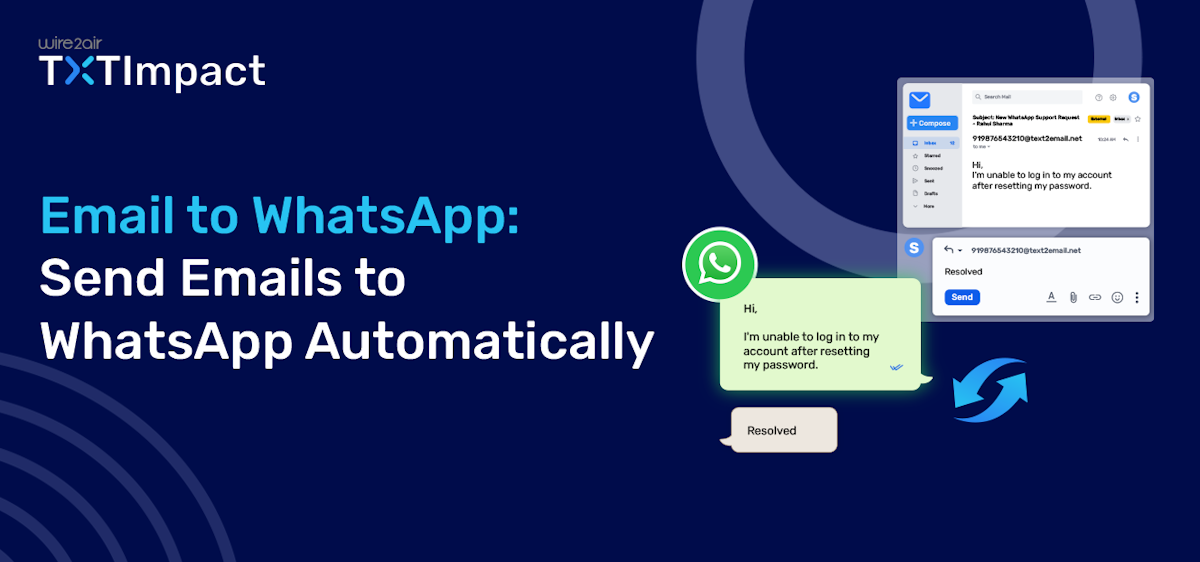
Email remains a core business communication channel; however, it’s not enough for fast, instant reach. Customers increasingly expect faster, mobile-friendly messaging, making platforms like WhatsApp a convenient solution to reach customers directly on a platform they already use every day.
However, manually copying email content into WhatsApp is time-consuming and difficult to scale. This is where Email-to-WhatsApp comes in.
It makes it easier for businesses to use their existing email workflows and send messages to customers on WhatsApp without requiring teams to switch between platforms manually.
In this guide, we’ll explain how to receive email notifications to WhatsApp automatically, what you need to get started, use cases, and how to send messages step by step using TXTImpact.
Key Takeaways:
|
Jump to: |
What is Email-to-WhatsApp and How Does It Work?
Email-to-WhatsApp is a messaging method that allows businesses to send WhatsApp messages using their existing email workflows. It allows businesses to automate sending messages to WhatsApp from email, eliminating the manual process, just like Email to Text.
Here’s how the Email-to-WhatsApp process works:
- Compose an email: The business creates a message using Gmail, Outlook, or another email client.
- Send it to the configured gateway: The email is sent to the appropriate configured gateway or service provider address.
- Message processing: The gateway receives the email and processes the sender, recipient, and message content.
- WhatsApp conversion and delivery: The email content is converted into a WhatsApp-compatible message and routed through the configured WhatsApp Business messaging infrastructure.
- The recipient receives the message: The customer receives the communication directly in WhatsApp.
- Track the message: Businesses can use available delivery and messaging status information to monitor the communication.
Here’s the simple workflow:
Business Email → Service Provider Gateway → WhatsApp → Customer
This approach is especially beneficial for businesses that already generate automated email notifications from CRMs, Monitoring systems, help desks, e-commerce platforms, or other business applications. Instead of rebuilding these workflows around a WhatsApp API, Email-to-WhatsApp provides a simpler way to extend existing email-based communications to WhatsApp.
Why Send Emails as WhatsApp Messages? Benefits of Email-to-WhatsApp Conversion
Sending emails as WhatsApp messages offers several key benefits to businesses, including:
- Faster communication: Deliver urgent updates and time-sensitive notifications quickly, including appointment reminders, booking confirmations and payment reminders.
- Improved message visibility: WhatsApp notifications provide a more immediate way to bring important updates to a customer's attention, improving visibility.
- Less manual work: Email-to-WhatsApp automation can eliminate repetitive copy-pasting and help businesses send recurring notifications more efficiently.
- Continue using existing email workflows: Teams can continue composing messages through their familiar email systems instead of manually switching between email and WhatsApp.
- Two-way conversations: Email-to-WhatsApp enables customers to respond through WhatsApp on supported platforms and ask relevant queries or reply with confirmations.
- Better engagement: Email-to-WhatsApp notifications make customer communications more direct and conversational, boosting engagement.
- Easy automation: Trigger WhatsApp messages from automated emails generated by CRMs, booking systems, help desks, and other platforms.
- Scalable messaging: Manage recurring notifications and growing message volumes more efficiently.
Email-to-WhatsApp vs Email-to-SMS: What’s the Difference?
Both Email-to-WhatsApp and Email-to-SMS allow businesses to send messages using email-based workflows, but they use different delivery channels and are suited to different communication needs.
Feature | Email-to-WhatsApp | Email-to-SMS |
|---|---|---|
| Delivery channel | SMS | |
| Rich messaging | Supports richer content, depending on setup | Primarily text-based |
| Internet requirement | Yes | No |
| Customer reach | Limited to WhatsApp users | Works on SMS-enabled mobile numbers |
| Two-way messaging | Supported with the right configuration | Supported by some providers |
| Existing email workflow | Yes | Yes |
| Setup complexity | Depends on WhatsApp Business configuration | Generally simpler |
| Best for | Customer conversations and rich notifications | Alerts, reminders, and broad-reach notifications |
Step-by-Step: How to forward Email-to-WhatsApp messages With TXTImpact
Sending WhatsApp messages through an email workflow can simplify business communication without requiring employees to copy messages between platforms manually. With TXTImpact, the process can be structured as follows:
Step 1: Create a TXTImpact Account
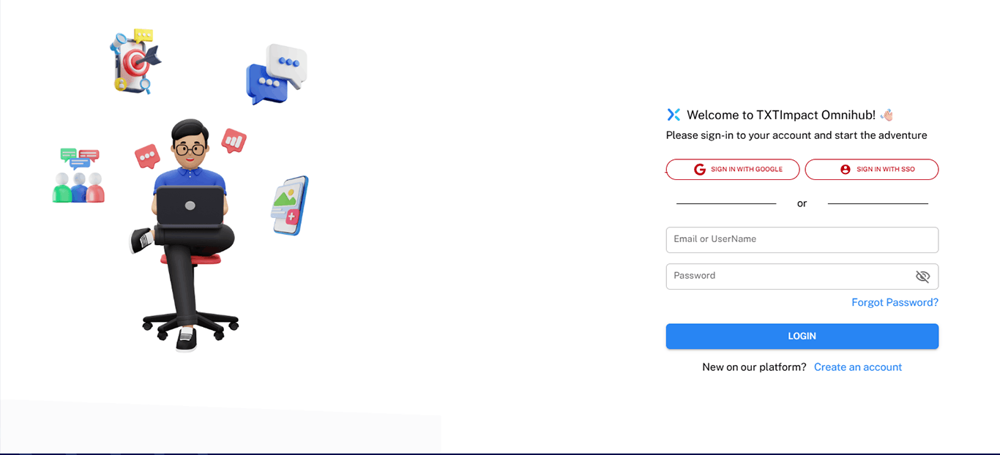
Log in to your TXTImpact Omnihub account if you’re an existing user. If you’re a new user, click Create an Account to set up your account.
Step 2: Connect Your WhatsApp Business Account
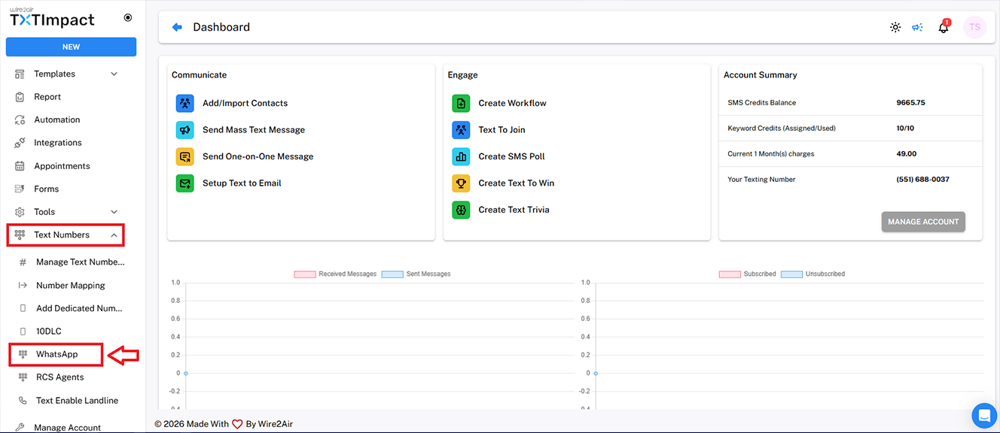
Go to Text Numbers → WhatsApp on the TXTImpact dashboard to manage and access all your WhatsApp numbers linked to your WhatsApp account.
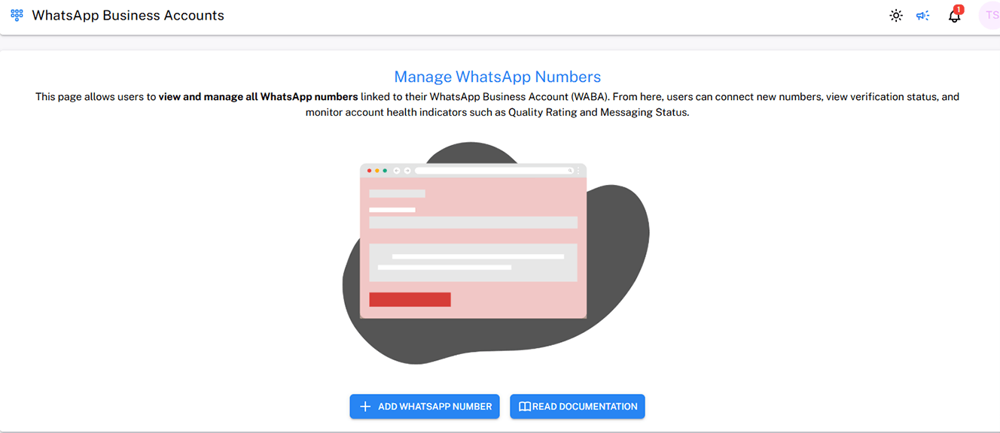
But first, you’ll need to complete the Meta verification process for your account to add numbers. Click on ADD WHATSAPP NUMBER and login to your Facebook account.
You can choose to create a new Facebook business account or login to your existing account. Once the account is verified, TXTImpact will automatically add your WhatsApp business number to the dashboard.
Step 3: Configure Email-to-WhatsApp Rules
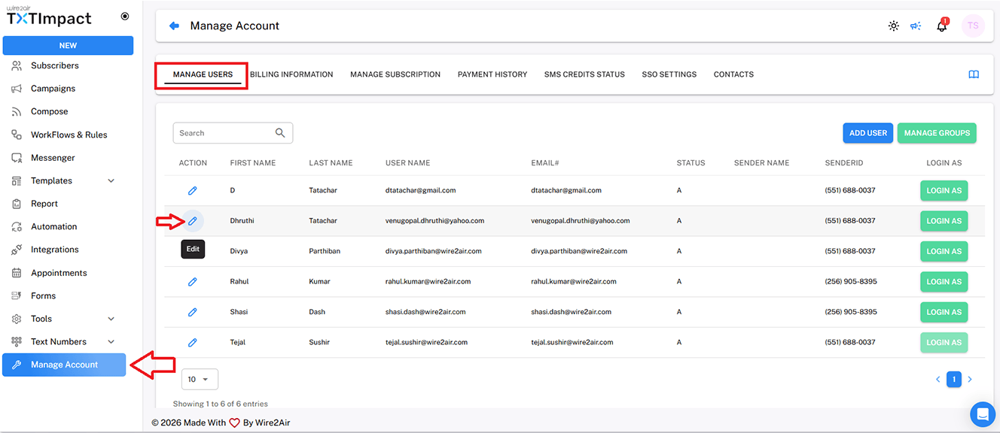
Once the WhatsApp numbers are added, go to Manage Accounts → Manage Users, and click on the edit option under ‘Action’ for the user or sender ID from which you want to send email-to-WhatsApp texts.
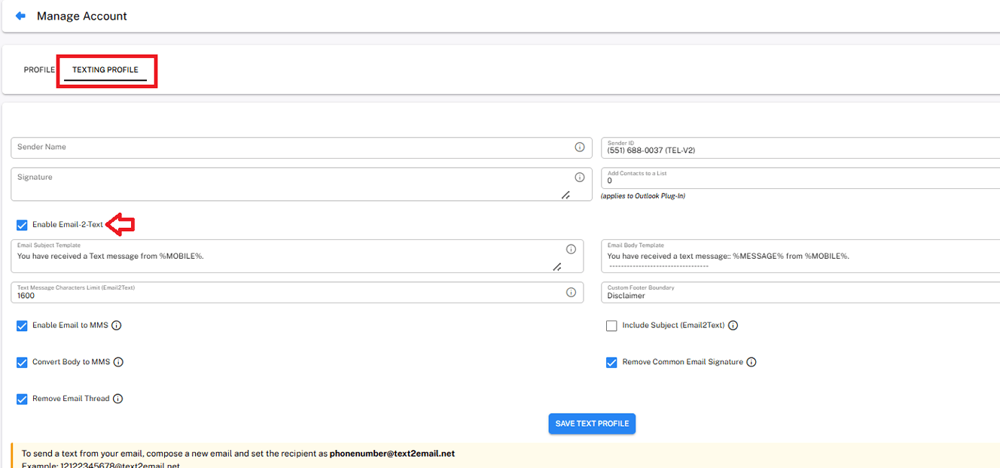
Then, under TEXTING PROFILE, make sure to check the ‘Enable Email-2-Text’ checkbox, and click on the ‘SAVE TEXT PROFILE’ button.
Once saved, you can customize the email-to-text settings on the screen and add required details, including the email subject template, email body template, and character limit for the email, and click on the ‘SAVE TEXT PROFILE’ button to save the configuration.
Once the settings are saved, you’re now ready to send email-to-WhatsApp alerts.
Step 4: Compose Your Email
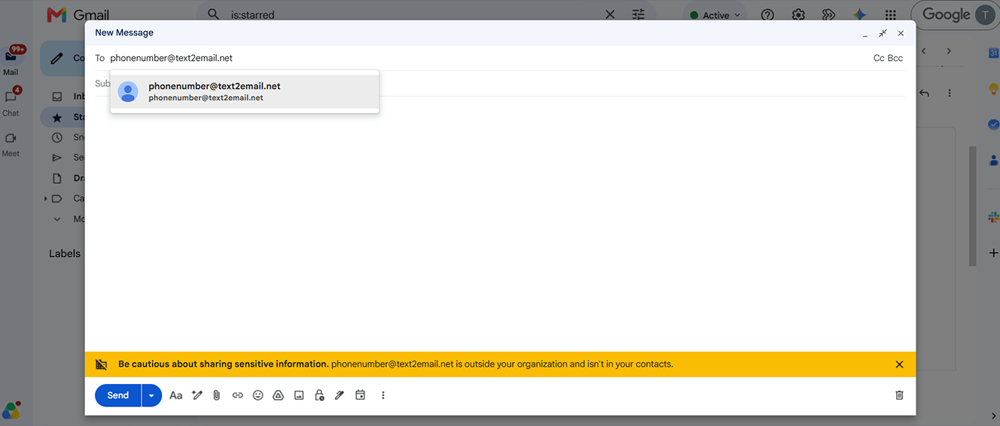
Open Gmail, Apple Mail, Outlook, or your preferred email client and enter the configured TXTImpact destination. Add the recipient’s WhatsApp number address in the To field in the following format → [email protected]
Write your message in the email body and keep it short, clear, and customer-friendly.
Send the email, and TXTImpact receives and processes it, then routes it to the configured WhatsApp number.
You can monitor the delivery status through available messaging reports.
Step 5: Test the configuration
Send a test email to your business WhatsApp number to test the configuration and ensure the message is accurately delivered to the designated recipient with the attachments included, if any.
Simple workflow:
Compose Email → Send to TXTImpact → Message Processing → WhatsApp Delivery → Customer Reply
💡 Also Read: How to Forward WhatsApp Messages to Email Automatically (Step-by-Step Guide) |
Configure Gmail-to-WhatsApp with TXTImpact
Once you have set up email-to-WhatsApp forwarding with TXTImpact, you can start sending messages from your Gmail inbox directly to WhatsApp numbers.
To configure Gmail-to-WhatsApp, simply configure Gmail as your email client and set the appropriate WhatsApp recipient or forwarding rule as shown below.
Configure Outlook-to-WhatsApp with TXTImpact
Similarly, you can send messages from your Outlook inbox directly to WhatsApp numbers using your Outlook email for Outlook-to-WhatsApp messaging.
Configure Outlook as your email client and set the required WhatsApp forwarding rule. Once activated, messages sent through Outlook can be delivered to WhatsApp, allowing your team to manage communications from Outlook while reaching customers on WhatsApp.
Alternatively, if your business communication is primarily managed through Outlook, you can integrate TXTImpact directly with Microsoft Outlook 365 using the TXTImpact Add-in for enhanced functionality, features, and additional benefits.
Email-to-WhatsApp Use Cases By Industry
Email-to-WhatsApp can help businesses make customer communication faster and more convenient. Common applications and use cases by industry include:
Industry | Email-to-WhatsApp Use Cases |
|---|---|
| Healthcare | Appointment reminders, follow-up notifications, routine patient service updates |
| Retail and eCommerce | Order confirmations, shipping updates, customer support, delivery notifications |
| Logistics and transportation | Shipment updates, delivery alerts, driver notifications, operational updates |
| Banking and financial services | Payment reminders, account/service updates, customer support notifications |
| Travel and hospitality | Booking confirmations, guest communication, check-in reminders, schedule changes |
| Education | Class reminders, enrollment updates, exam notifications, event reminders |
| Real estate | Property viewing reminders, lead follow-ups, appointment confirmations |
| SaaS and technology | Account notifications, support ticket updates, maintenance alerts, service notifications |
| HVAC | High/low temperature alerts, filter/service reminders, equipment failures, compressor faults, maintenance notifications |
| BAS (Building Automation Systems) | HVAC alarms, temperature alerts, equipment faults, system status notifications, critical building alarms |
| Industrial & Manufacturing | Machine breakdown alerts, status updates, safety alerts, production-line notifications, equipment, maintenance warnings |
Email-to-WhatsApp vs WhatsApp API: Which Should You Choose?
Between Email-to-WhatsApp and WhatsApp API, both approaches can help businesses send WhatsApp messages, but they differ mainly in setup, flexibility, and technical effort.
The right choice depends on whether you want to extend an existing email workflow or build a deeper WhatsApp integration.
Factor | Email-to-WhatsApp | WhatsApp API |
|---|---|---|
| Technical complexity | Low | Higher |
| Setup time | Faster | More involved |
| Coding required | Minimal or none | Usually required |
| Customization | Limited to moderate | High |
| Using existing email workflows | Yes | No |
| Automation | Suitable for email-triggered messages | Highly customizable |
| Maintenance | Generally simpler | Requires ongoing technical management |
| Best for | Businesses already using email alerts | Developers and complex applications |
For businesses that already rely heavily on email notifications and want to send WhatsApp messages without extensive development, Email-to-WhatsApp is generally the simpler starting point.
It lets them extend existing workflows to WhatsApp with minimal integration and maintenance, without rebuilding their communication infrastructure.
A WhatsApp API integration, on the other hand, is better when businesses need greater control, customization, advanced automation, and integration with their own applications or backend systems.
Common Email-to-WhatsApp Problems and How to Fix Them
Problem | Possible cause | Solution |
|---|---|---|
| Message not delivered | Invalid or incorrectly formatted WhatsApp number | Verify the recipient's number and use the required international format. |
| WhatsApp message not sent | WhatsApp Business setup is incomplete | Check your WhatsApp Business configuration, sender, and required approvals. |
| Email rejected | Sender email is not authorized | Add and verify the email address in your TXTImpact configuration. |
| Message formatting is incorrect | Unsupported HTML, formatting, or email signatures | Use simple text and remove unnecessary formatting or signatures. |
| Template rejected | Template does not meet WhatsApp requirements | Review the template and submit a compliant version for approval. |
| Media or attachments fail | Unsupported file type, size, or configuration | Check supported media formats and size limits before sending. |
| Message is delayed | Temporary provider, network, or WhatsApp delivery issue | Check delivery status and retry after confirming the configuration. |
| Messages reach the wrong recipient | Incorrect recipient mapping or number format | Verify recipient details and test the routing configuration. |
| Customers cannot reply | Two-way WhatsApp messaging is not configured | Enable and configure the appropriate reply-handling workflow. |
| Messages are blocked or restricted | Missing consent or policy violation | Confirm recipient opt-in and follow applicable WhatsApp Business messaging policies. |
Best Practices for Email-to-WhatsApp Messaging
Follow these practices to make Email-to-WhatsApp communication reliable, useful, and compliant:
- Get proper opt-in: Send WhatsApp messages only to recipients who have provided the required consent.
- Keep messages concise: Use short, clear messages that are easy to read on mobile devices.
- Identify your business: Clearly mention your company or brand, so recipients know who is messaging them.
- Personalize messages: Include relevant details such as the customer's name, order number, appointment time, or booking reference.
- Use approved templates: Follow WhatsApp's template requirements for business-initiated conversations where applicable.
- Avoid unnecessary messages: Send only relevant and valuable notifications to reduce message fatigue.
- Keep formatting simple: Avoid excessive HTML, long signatures, and unnecessary email elements that may not translate well to WhatsApp.
- Add a clear CTA: Tell recipients what action they should take, such as Reply, Track Order, or Confirm Appointment.
- Protect customer data: Avoid including sensitive or confidential information unless the communication method and applicable requirements allow it.
- Monitor delivery: Regularly review delivery and failure reports to identify recurring issues.
- Maintain a fallback channel: For critical notifications, consider keeping email or SMS available as an alternative communication channel.
Why Choose TXTImpact For Email-to-WhatsApp Forwarding
TXTImpact provides a reliable, scalable, and easy-to-use email-to-WhatsApp messaging solution for businesses that want to send quick WhatsApp alerts and notifications via email.
It has served over 30,000 businesses in its 20 years of industry experience, offering flexible, secure, innovative, and enterprise-grade business communication services with flexible plans and pricing.
Here’s why you should choose TXTImpact for email-to-WhatsApp forwarding:
- Compatible with any email client: Send WhatsApp communications from familiar email platforms such as Gmail, Apple Mail, Thunderbird, Outlook or any email client.
- Business messaging support: Suitable for customer notifications, reminders, alerts, and follow-ups.
- Multi-channel capabilities: Businesses can use WhatsApp alongside other messaging channels, including SMS, MMS, and RCS, based on their communication needs.
- Automation-friendly: Connect email-generated notifications from CRMs, booking platforms, support systems, and other business applications.
- Live delivery reporting: View real-time message delivery reporting and confirmation with open rate tracking to avoid message failure.
- 10DLC registration with AI Wizard: Automate the 10DLC registration process with our AI Wizard for effortless, quick, compliant verification.
- No API or development needed: TXTImpact eliminates complex API integration and development efforts, offering a seamless integration and onboarding process.
- Competitive pricing: TXTImpact offers transparent and competitive per-text pricing plans without any hidden fees.
- Global coverage: With TXTImpact, you can send messages across 200+ countries with 800+ carrier support, without carrier compatibility problems.
TXTImpact can help businesses bridge their existing email workflows with WhatsApp, reducing manual work while making customer communications more direct and accessible.
Conclusion
Email-to-WhatsApp provides a simple way for businesses to send quick WhatsApp alerts and notifications from the preferred email client. With the right setup and configuration and a reliable messaging tool, businesses can remain stress-free and forward WhatsApp messages without extensive technicalities and development.
TXTImpact facilitates Email-to-WhatsApp messaging with an intuitive dashboard and integration. Simply connect your Meta account, configure message forwarding rules, and automate email workflows to reduce manual effort and improve customer engagement.
If you’re looking for reliable customer support and intuitive solutions, contact us at TXTImpact today or start a free trial to learn more.
FAQs
♦ Can I send WhatsApp messages from Gmail or Outlook?
Yes, you can compose and send messages from Gmail, Outlook, Apple Mail, or another supported email client through a configured TXTImpact workflow.
♦ Can customers reply to Email-to-WhatsApp messages?
Yes, you can enable two-way conversations when the appropriate reply configuration is set up. When customers reply the Whatsapp messages will be delivered back to the inbox.
♦ Do I need coding to use Email-to-WhatsApp?
No, email-to-WhatsApp can be configured without extensive API development, making it suitable for businesses already using email-based workflows.
♦ Is Email-to-WhatsApp better than the WhatsApp API?
Email-to-WhatsApp is generally simpler for businesses extending existing email workflows, while the WhatsApp API is better for advanced customization and deeper application integrations.
♦ Is recipient consent required for WhatsApp messaging?
Yes, businesses should obtain the required recipient opt-in and follow applicable WhatsApp Business messaging policies before sending messages.
About the Author:
 | Rahul Kumar (Marketing Specialist) Rahul Kumar is a Digital marketer with 7+ years of experience in SEO, AEO,SMS marketing, WhatsApp marketing, SaaS, and WordPress. He has led successful growth campaigns for startups and tech brands, combining data-driven strategies with compelling content. His work has been featured on top SaaS blogs, and he’s known for turning complex ideas into high-converting digital strategies. |