Celebrating TXTImpact's 20 Years of Business Texting Excellence. Be part of our journey. Start your free trial today!
TXTImpact Unified Inbox For all Business Messaging
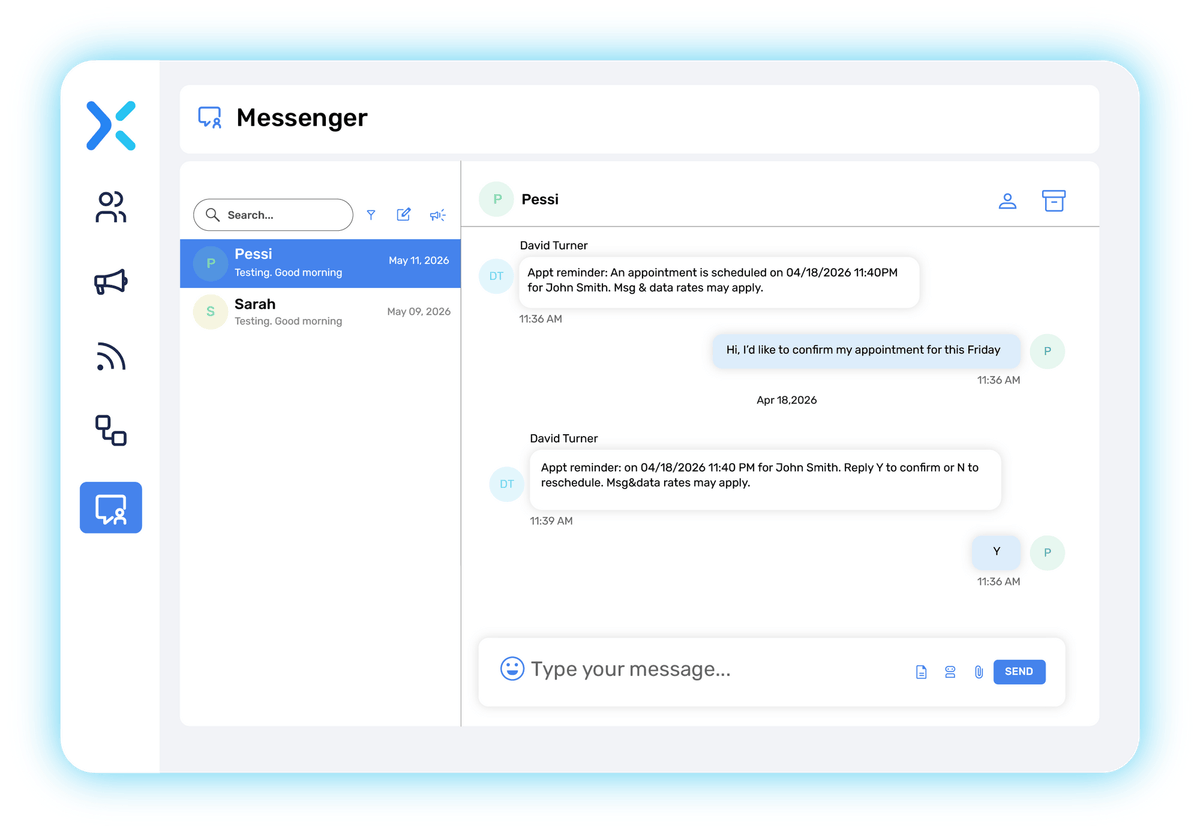
Combine all your customer communications and manage conversations from a single shared SMS inbox.
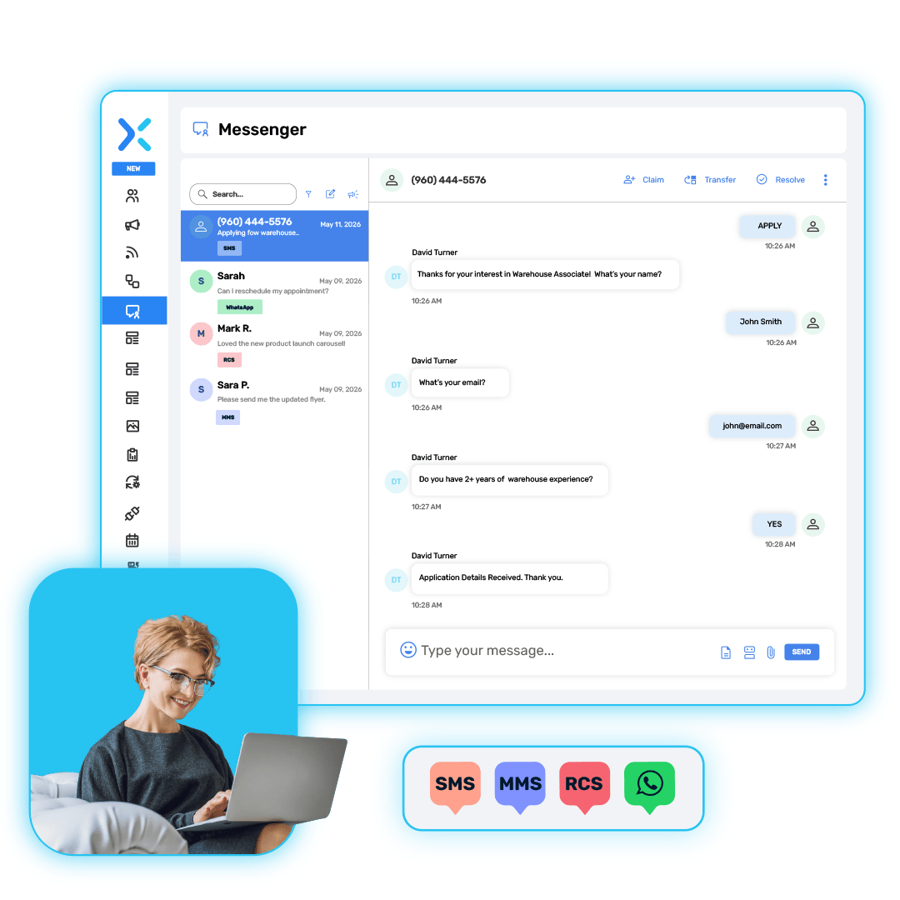
TXTImpact Unified Inbox brings together SMS, MMS, RCS, and WhatsApp to improve team efficiency and give you better visibility across the customer journey. Reply faster, maintain full conversation context, and give your entire team one place to work from.
A True Omnichannel Inbox, Built Around Text Messaging
Keep business conversations organized, accessible, and easy to manage with TXTImpact Unified Inbox.
Managing customer messages across multiple numbers, channels, and conversations can quickly become difficult.
Omnihub Unified Inbox brings your business messaging into one centralized inbox so your team can spend less time switching between tools and more time responding to customers.
See conversations
in context
Access ongoing and previous conversations from the same workspace. Your team can review message history, understand customer interactions, and respond with the context they need.
Keep customer communication moving
Respond to incoming messages in real time and keep conversations moving from a single interface, whether you're answering a customer question, following up with a lead, or sending an important notification.
Manage multiple messaging channels
Send and receive conversations across supported messaging channels from within your Omnihub environment, including SMS, MMS, RCS, and WhatsApp. Keep conversations organized without maintaining separate workflows for each channel.
Everything Your Team Needs in One shared SMS Inbox
Unified Inbox combines everyday business texting tools with the broader capabilities of the TXTImpact Omnihub platform.
Send SMS, MMS, RCS, and WhatsApp Messages
Communicate with customers through the channels your business uses most.
Send standard text messages, share images and files through MMS, create richer RCS experiences, or manage WhatsApp Business conversations, all within the TXTImpact Omnihub Messaging Platform .
Start New Conversations with Contact Lookup
Look up contacts and initiate conversations directly from the inbox.
Reach out to an existing contact or start a new customer conversation without moving to another messaging application.
Manage Conversation History
Keep previous customer interactions accessible from the conversation view.
Message history gives your team the context needed to understand previous questions, responses, and follow-ups before replying.
Use AI Assist To Compose Texts Automatically
Describe what you need to say, and AI Assist drafts the message for you in your preferred tone, language, and intent for SMS, MMS, RCS, and WhatsApp.
Useful when you're staring at a blank reply box, and the customer is waiting.
Reply to Incoming Messages
Monitor incoming conversations and respond directly from your inbox.
Give your customers a convenient way to communicate with your business while keeping replies centralized for your team.
Use Saved Templates
Speed up repetitive conversations with reusable message templates for SMS, MMS, and RCS.
Create commonly used responses for customer questions, reminders, follow-ups, and other recurring communication while still allowing your team to personalize messages when needed.
Send Messages to Multiple Recipients
Use the Bulk Composer to send mass texts to multiple recipients at once.
Whether you're sending an announcement, reminder, or other business communication, unified Inbox gives your team a streamlined way to compose messages for multiple contacts.
Send Rich RCS Messages with a live typing indicator
Go beyond traditional text with RCS messaging.
Create richer customer experiences with branded RCS Business Messaging, including a live typing indicator and interactive content such as rich cards and carousels where supported.
Leave Private Internal Notes
Add private internal notes to any conversation without exposing them to the customer.
Leave reminders, context, or instructions for other team members to help keep everyone aligned while managing customer conversations.
Access Full Message History
Get the complete context of every customer interaction from one conversation view.
Review full message history to understand previous conversations, follow-ups, and responses before continuing the conversation.
Transfer, Assign, and Resolve Conversations
Keep conversations moving smoothly across your team with flexible conversation management.
Transfer conversations between agents, claim or assign conversations to team members, and mark conversations as resolved once an issue has been handled.
Filter Conversations with Smart Message Filters
Find the conversations you need faster with smart message filters.
Filter your inbox by conversation status, including All, Open, Closed, and other available categories, to keep your messaging queue organized and manageable.
How TXTImpact Unified Inbox Works
Open the Unified Inbox
Sign in to your TXTImpact Omnihub account and open Messenger from the dashboard.
View your conversations
Access incoming and ongoing customer conversations from your messaging inbox.
Select a conversation
Open a conversation to review previous messages and understand the customer interaction.
Respond
Send an SMS, MMS, RCS, or WhatsApp message based on the communication channel and customer interaction.
Keep the conversation moving
Continue managing the interaction from the same inbox as new messages arrive.

Built for Faster Team Communication
Unified Inbox isn't just a place to send texts. It gives teams a centralized workspace to manage customer conversations as they happen
Keep conversations organized
Bring customer interactions into one place instead of making your team search across multiple messaging tools.
Gives teams better visibility
A centralized inbox makes it easier for teams to keep track of active conversations and maintain continuity when multiple people are involved in customer communication.
Reduce unnecessary app switching
Your team can manage conversations directly inside the Omnihub dashboard alongside other messaging and communication tools.
One Inbox. Multiple Business Use Cases
TXTImpact Unified Inbox can support conversations across different teams and customer touchpoints.
Customer support
Respond to customer questions while reviewing their account, order, or support information.
Operations
Send updates to customers or internal teams without leaving the browser-based tools used to manage daily operations.
Sales teams
Follow up with prospects while viewing their company information, lead records, or other web-based sales tools.
Marketing teams
Use saved media templates and bulk messaging to streamline frequently repeated outreach.
Service teams
Keep customer conversations accessible while working through service requests, schedules, or account details.
Connect Unified Inbox with the Tools You Already Use
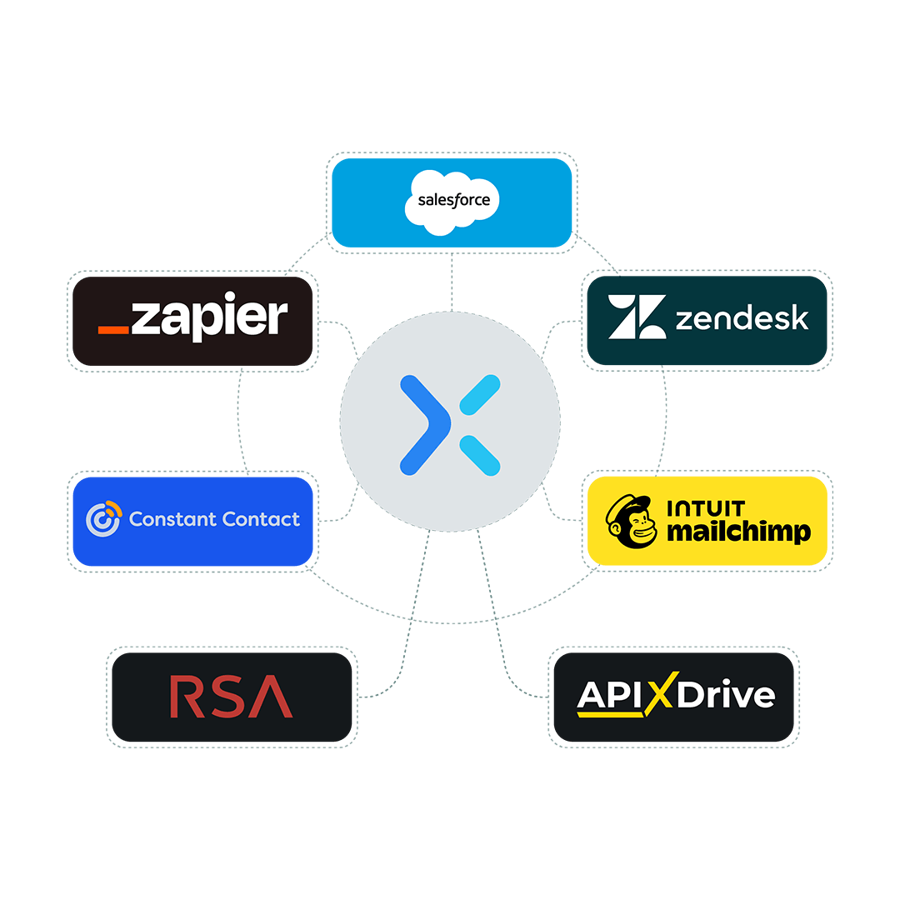
Unified Inbox works alongside the business tools your team already relies on, including Zendesk, Zapier, Salesforce, HubSpot, and more. Connect your existing platforms to keep customer communication and workflows connected across your business.
Sync conversations, contacts, and tickets with the tools your teams already use, so customer information stays accessible, and your workflows stay organized.

Need TXTImpact Unified Inbox Outside the Omnihub Dashboard?
Meet the TXTImpact Chrome Extension
The Unified Inbox is built directly into the Omnihub dashboard. The Chrome Messenger extension gives you another way to access your TXTImpact messaging experience in your browser.
The Messenger extension includes a Chrome side panel, allowing users to read and respond to conversations without leaving the webpage they're currently viewing. The extension supports SMS, MMS, and RCS messaging and requires an active TXTImpact account.

Bookmark the Unified Inbox URL for Quick Access
However, if you prefer not to use Chrome or access the Unified Inbox through the Omnihub dashboard, You can bookmark the Unified Inbox URL directly in your browser and jump straight into your inbox anytime no need to open or log in to the Omnihub dashboard first.

Use TXTImpact Unified Inbox if you want to:
Manage messaging from the full TXTImpact Omnihub dashboard
Access your broader Omnihub communication tools
Work with messaging alongside automation and other platform features
Manage conversations from your centralized Omnihub workspace
Use the TXTImpact Chrome Extension if you want to:
Access inbox directly from Chrome
Keep your messaging panel beside the webpage you're viewing
Respond to conversations without opening the Omnihub dashboard in another tab
Quickly access TXTImpact messaging while working in other browser-based applications
Already a TXTImpact customer?
Add the extension, sign in, and bring your inbox into your browser.
Frequently asked questions answered
What is TXTImpact Unified Inbox?
TXTImpact Unified Inbox is the built-in messaging tool within the TXTImpact Omnihub dashboard. It provides a centralized workspace to send, receive, and manage business conversations across supported messaging channels.
Can I send RCS messages from Unified Inbox?
Yes, RCS Business Messaging is part of TXTImpact Omnihub's multichannel messaging capabilities. Businesses can create and send richer, branded RCS experiences through the platform.
Do I need a TXTImpact account to use Unified Inbox?
Yes. Unified Inbox is part of the TXTImpact messaging platform, and the Chrome extension also requires an active TXTImpact account.
What is the TXTImpact Chrome Extension used for?
The Chrome extension provides an alternative way to access TXTImpact Unified Inbox directly from Chrome. It opens the inbox in a side panel so users can read and reply to conversations while working on another webpage.
Can my team use Unified Inbox for customer support?
Yes, a centralized messaging inbox can help support teams monitor customer conversations, review message history, and respond from one workspace.
Streamline Communication with Our Unified Inbox
By using this website you agree to our privacy policies
We use cookies to improve user experience. Choose what cookie categories you allow us to use. You can read more about our Cookie Policy by clicking on Cookie Policy below.
These cookies enable strictly necessary cookies for security, language support and verification of identity. These cookies can’t be disabled.
These cookies collect data to remember choices users make to improve and give a better user experience. Disabling can cause some parts of the site to not work properly.
These cookies help us to understand how visitors interact with our website, help us measure and analyze traffic to improve our service.
These cookies help us to better deliver marketing content and customized ads.